
A block is one orchard or field: one crop, one cultivar, one planting date. It is what an application goes onto, and what every record is kept against.
The block form only offers crops already on your farm's list, and cultivars of the crop you pick. So if the block is a crop or a cultivar you have not grown before, add that first. Work in this order:
- The crop, on the Crops page — only if your farm does not grow it yet.
- The cultivar, on the Cultivars page — only if it is not on the list.
- The block itself, on the Blocks page.
The example plants a block of plums on a farm that has only grown table grapes, in a cultivar Intecrop does not know yet, so it goes through all three.
Only an Administrator or a Manager can add crops, cultivars and blocks.
Add the crop
Skip this if the crop is already on your Crops page.
On the Crops page, click New.
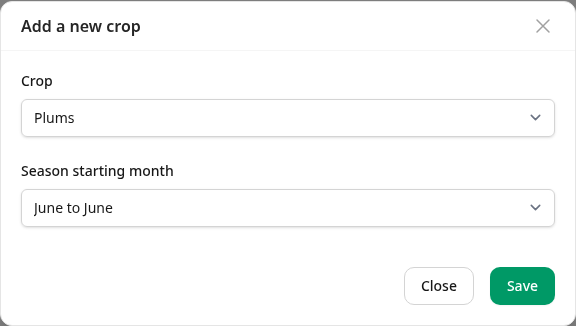
- Crop — the list is in two parts. Not on this farm yet holds every crop you can add. Already on this farm — adds a second season holds the crops you already grow: picking one of those does not add the crop again, it adds a second season for it, starting in another month. That is only for a farm that really does grow one crop on two calendars. To plant another block of a crop you already grow, skip straight to the block.
- Season starting month — the month this crop's year starts on your farm. Here plums run June to June. Every season of the crop is counted from this month, and reports group the crop's records by those seasons. See How seasons work.
Save, and the crop is on the list.
If your farm once grew the crop and removed it, do not add it again. Click Show removed crops on the Crops page and put it back with the arrow on its row: it comes back with everything that was filed under it.
Add the cultivar
Open the Cultivars page. It already holds every cultivar Intecrop knows for the crops on your farm — adding plums put the plum cultivars on the list.
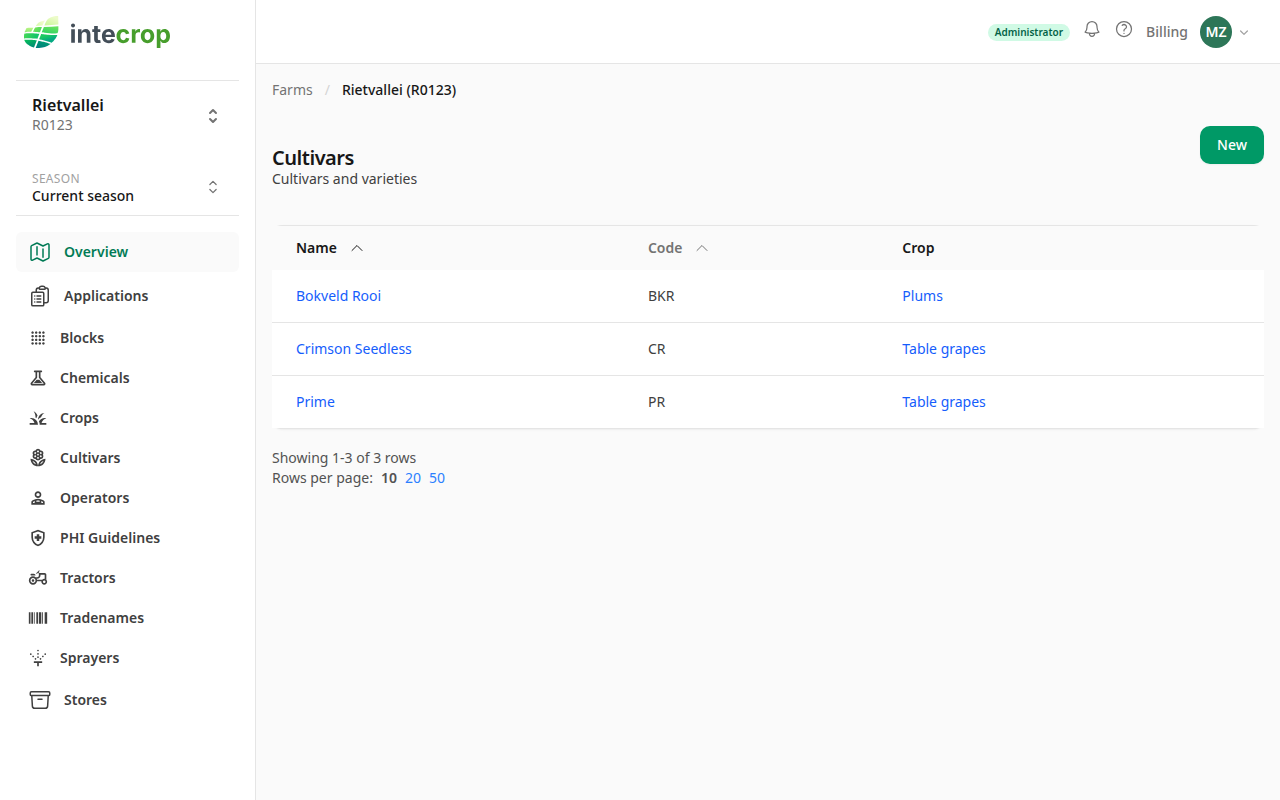
If yours is there, there is nothing to add: go on to the block. If it is not, click New.
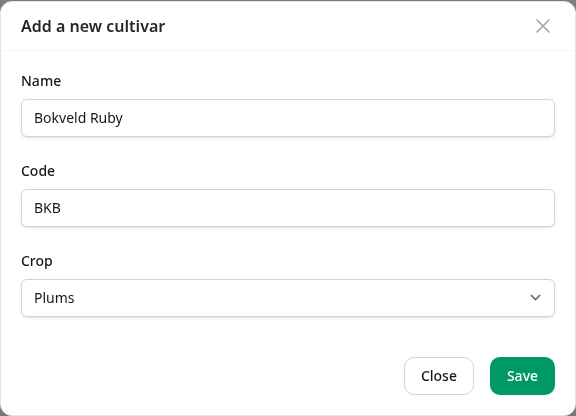
- Name — the cultivar's name.
- Code — the short code, if it has one. It is saved in capitals whatever you type.
- Crop — only the crops on your farm are offered, which is why the crop comes first.
Save. Before it adds anything, Intecrop looks for cultivars of that crop with a name like the one you typed. If it finds any, the form does not save yet. Instead it changes to a list of them, each with a circle to tick:
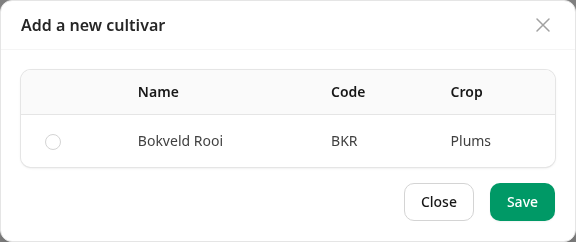
Nothing has been added at this point. Choose, then press Save again:
- If one of them is your cultivar — the same one, spelt differently — tick it and save. Nothing new is made: use that one on the block.
- If none of them is, tick nothing and save. Your cultivar is added as a new one, for your farm.
Here Bokveld Rooi is a different cultivar from Bokveld Ruby, so nothing is ticked, and Bokveld Ruby is added.
Add the block
On the Blocks page, click New.
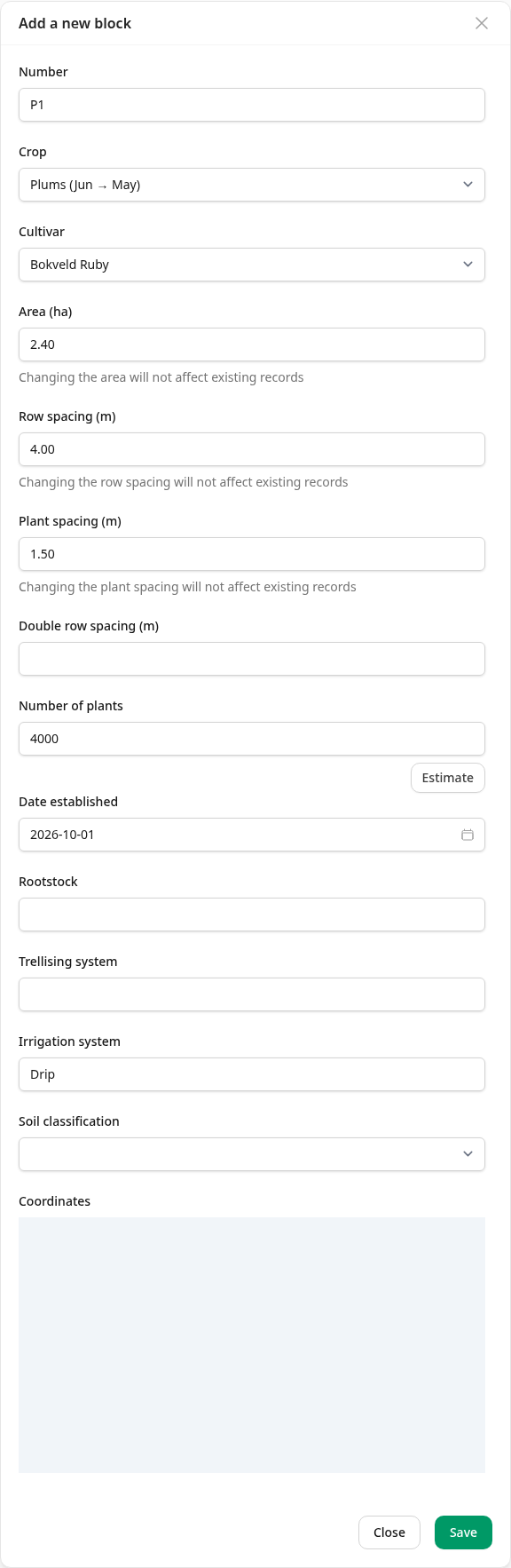
- Number — the block's name or number, as you call it on the farm. Two blocks still in the ground cannot share a number on the same production unit.
- Production unit — the PUC the block falls under. A farm with only one does not see this field: the block goes on that one. See Farms and production units.
- Crop — your farm's crops, each with its season's months in brackets: Plums (Jun → May).
- Cultivar — the cultivars of the crop you picked. Choose the crop first; the list changes with it.
- Area (ha), Row spacing (m), Plant spacing (m) — the area is what an application's quantities are worked out from.
- Double row spacing (m) — only for double-row plantings.
- Number of plants — type it in, or press Estimate to work it out from the area and the spacing. Here 2.40 ha is 24 000 m², and a plant every 4.00 m × 1.50 m is 6 m² each, so 4000 plants.
- Date established — the day it was planted. It cannot be in the future.
- Rootstock, Trellising system, Irrigation system, Soil classification — optional.
- Coordinates — draw the block's outline on the map if you want it on the farm map.
Everything from Number to Date established must be filled in, except Double row spacing (m). The fields after it are optional.
Check the crop and the cultivar before you save. The block's Edit form does not offer them again. Everything else can be changed later.
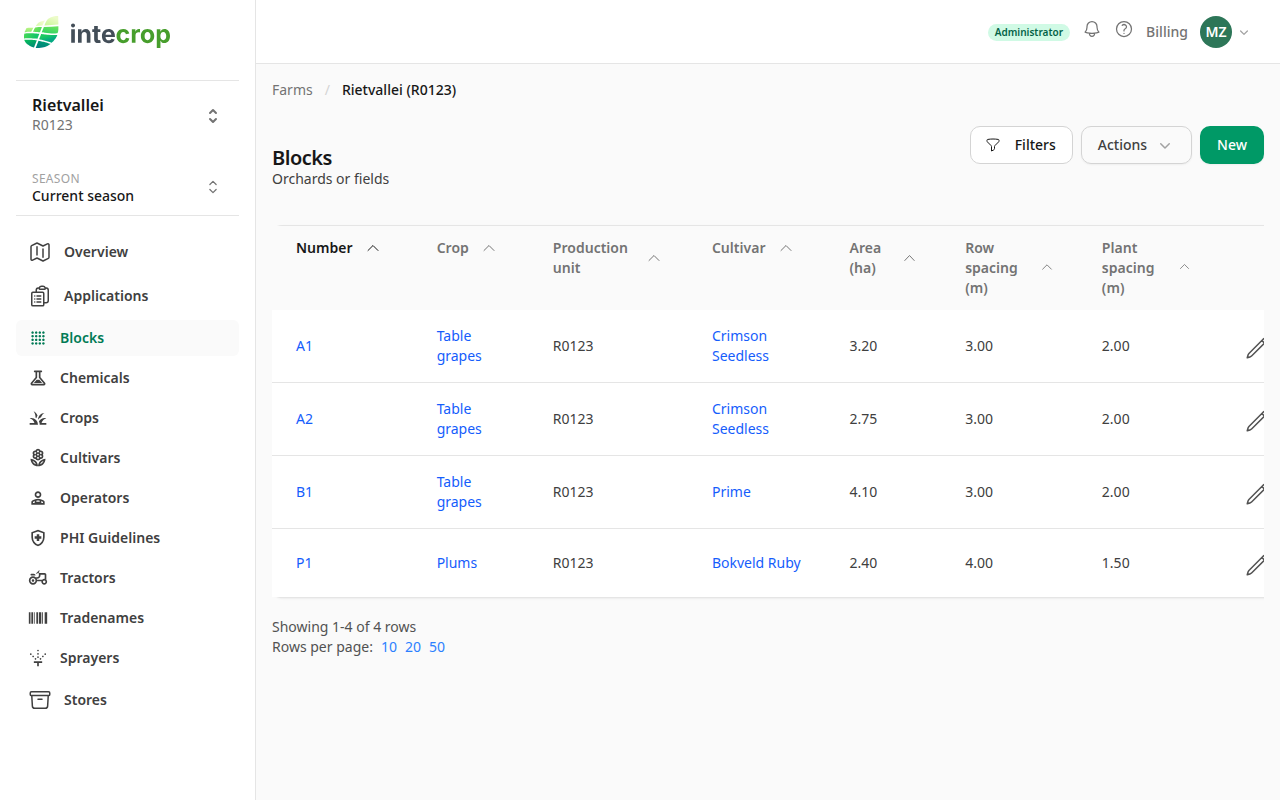
Save, and the block is on the list.
If the block does not show on the list
The Blocks page shows the blocks of the season picked at the top of the menu. A block planted after that season ends is saved, but not listed for it. The form warns you under Date established before you save, and again once you have. Pick a later season to see it.