
An auditor usually asks for two things about your blocks: what is planted where, and what went onto each block this season. The Blocks page gives you both as downloads, ready to send.
Three things decide what is in them:
- The season you have chosen. Every download covers the season picked in the Season selector in the menu, the same season the Blocks page is showing. For last season's records, choose last season first, then download. See How seasons work.
- Only published applications count. The records come from what Publish writes onto each block, so an application still at Instruct, Apply or Record is not in them yet. See The four stages of an application.
- Every block on the farm, whatever the filters say. The downloads take no notice of the Filters on the Blocks page. Filter to one production unit and the files still carry all of them. For one block alone, see Just one block below.
Download them
On the Blocks page, open the Actions menu.
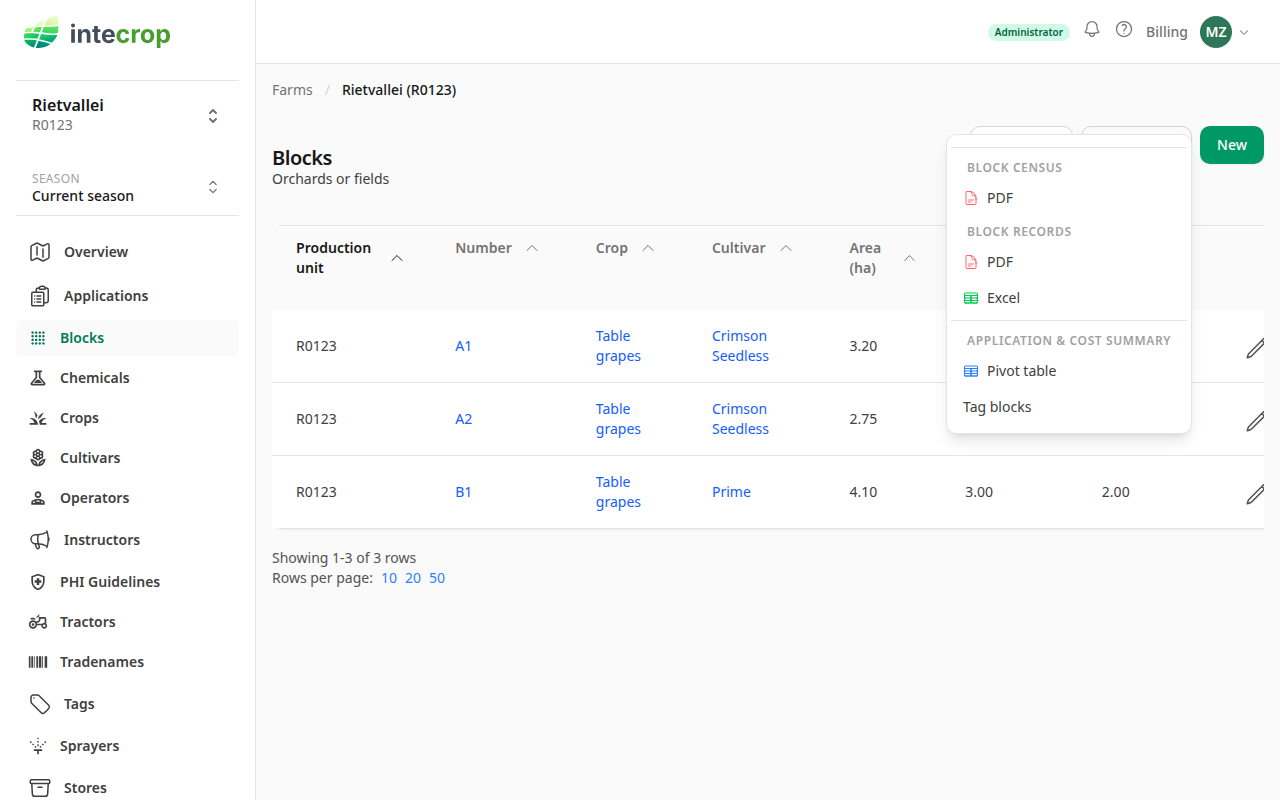
- Block census — PDF is the list of what is planted: one table per crop, with a row per block.
- Block records — PDF is the application record of every block, one block after the other.
- Block records — Excel is the same record as a spreadsheet, with a sheet per block.
The PDFs open in a new tab, where you can save or print them; the spreadsheet
downloads. The files are named for the farm and today's date, so
Rietvallei_blocks_list_…pdf, Rietvallei_block_records_…pdf and
Rietvallei_all_blocks_…xlsx.
On a phone the Actions menu is hidden; the round + button at the bottom right offers the same downloads, under Census and Records.
What the census holds
Each block's number, cultivar, date established, row and plant spacing, plant density, area, number of plants, rootstock, trellising and irrigation system, soil type, GPS coordinates, growth stage, and its expected, earliest next and actual harvest dates. A block with no map outline has no GPS coordinates. A block that carries no crop in the chosen season shows Non-bearing for its expected and earliest next harvest dates.
The growth stage and the harvest dates are those of the season you have chosen, not of today. The census lists the blocks the Blocks page lists for that season, before any filter, by crop.
What the records hold
Each block starts with a heading: its crop, cultivar, area, spacing, the season, its growth stage, its harvest dates and its total IPM points, and the GGN of its production unit if you have one.
Below that is the Applications table, newest first: each application's number and date, the time and the weather, the method and growth stage, the calibration and the water actually applied, the water pH, and for every product on it the active ingredients, targets, the dosage, the dosage per hectare and what was actually applied, the PHI, the re-entry interval, and the earliest next harvest date it allows.
The PDF then lists the Chemicals used on the block, grouped by category: each product's registration holder, and its active ingredients with their RAC group and concentration. A product with no active ingredient on record is left off this list, though its applications are still in the table above.
The spreadsheet has a Summary instead, which also adds up how much of each product went onto the block and how much active ingredient that was.
The earliest next harvest date is not proof of compliance. It is the application date plus the longest PHI recorded on that application. It leaves out PHIs left blank and any conditions written in the PHI comments, so check those yourself before you rely on it.
Just one block
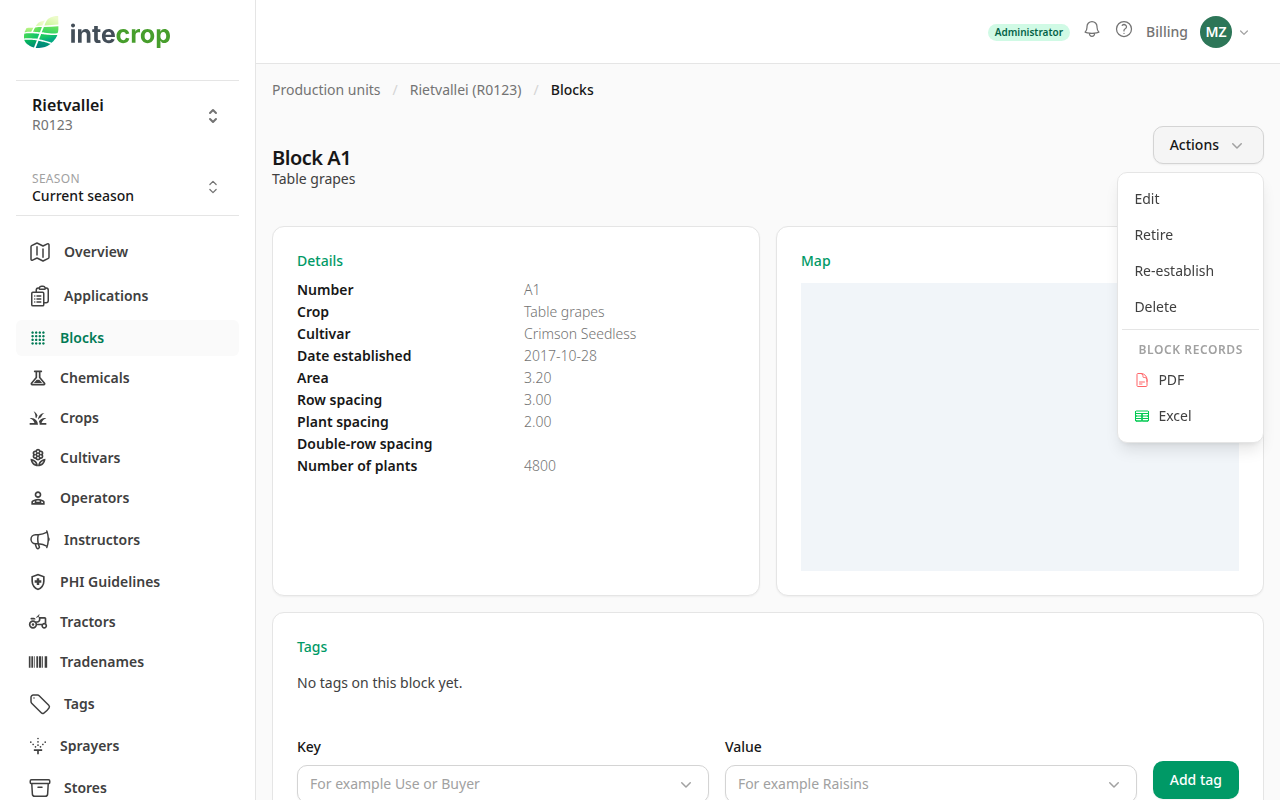
When the auditor asks about one block, open that block's page and its Actions menu. Under Block records are the same PDF and Excel, for that block only.
Totals across blocks
The block records go block by block. When the auditor wants totals instead — how much of each active ingredient went onto each block, or how many applications of each resistance group — use Pivot table under Application & cost summary in the same menu. If your role does not see money, the heading reads Application summary. Its Ingredient per block, Resistance groups per block and Product per block by month presets are built for audits. See Create an application summary.