
Everything about your account with Intecrop is under Billing: the invoices we have sent your farm, the payments we have received, and what is still owing. This guide shows where each one is, how to pay, and what to do if the app tells you a payment is overdue.
Only an Administrator, Manager or Financial Officer sees Billing. For every other role the link is not there.
The amounts in the pictures are made up. They are not our prices.
Open your statement
Choose Billing at the top right of any page. It opens on your statement.
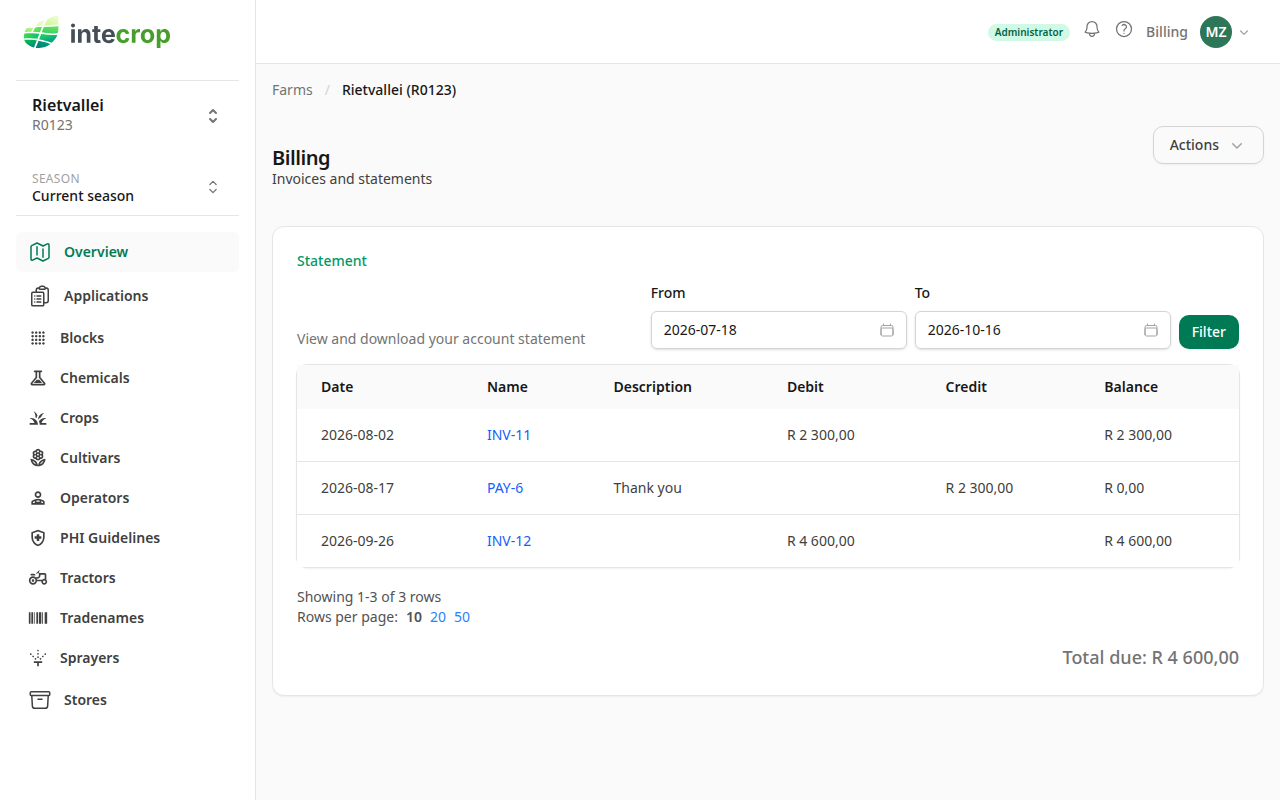
Each line is a document on your account:
- INV- lines are invoices. They go in the Debit column.
- PAY- lines are payments we received. They go in the Credit column and read Thank you.
- CN- lines are credit notes, and REF- lines are refunds, if your farm has any.
Each line's number opens it, so you can go from a line on the statement straight to the invoice behind it.
Balance is the running total after each line, and Total due under the table is the balance on the last day of the statement. While the statement runs to today, that is what you owe.
The statement starts on 1 October, when the billing year starts, and runs to today. To see further back, change From and To and press Filter. Anything before From is not left out — it is added up into one Balance brought forward line at the top. Anything after To is left out, so to see what you owe now, leave To on today.
Download the statement
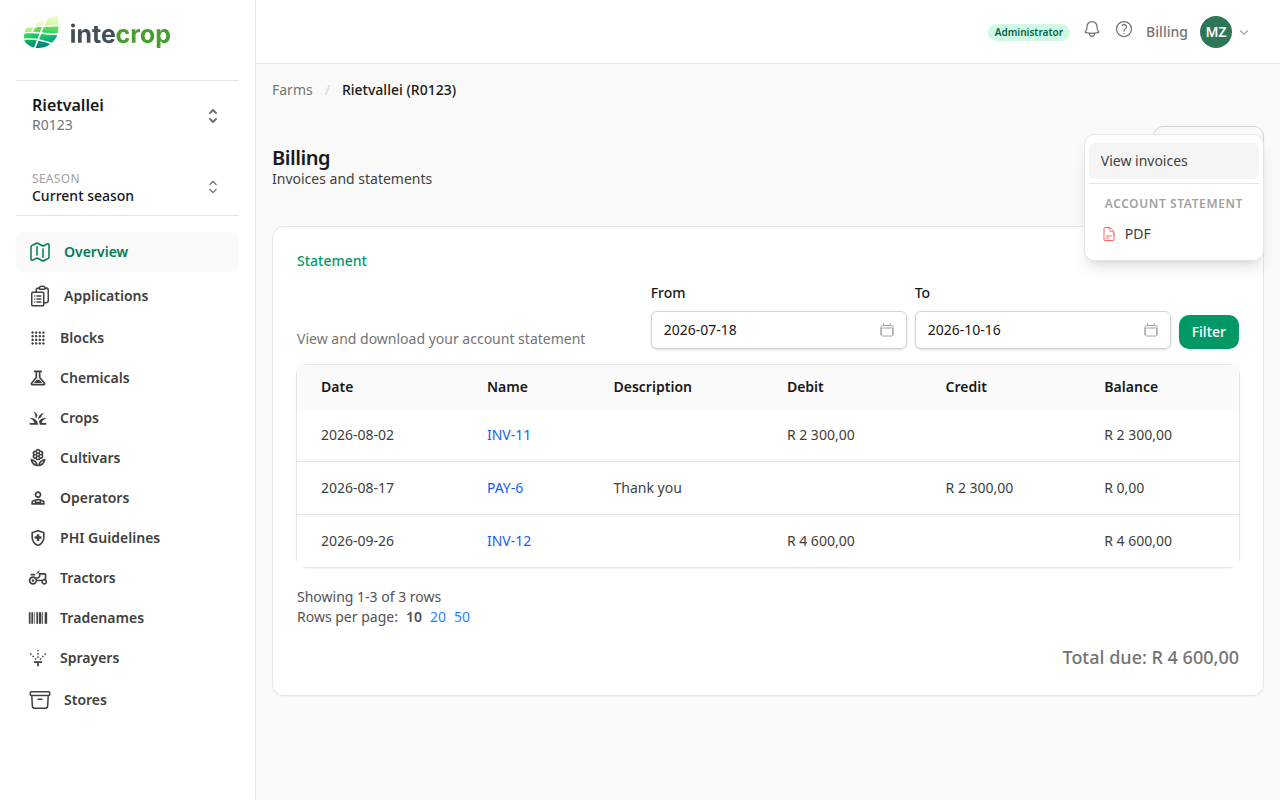
Open Actions and choose PDF under Account statement. The PDF covers the same dates as the screen, so set From and To first.
On a phone there is no Actions menu on this page. Use the round button at the bottom right instead: it offers View invoices and Statement PDF.
You do not have to come and fetch it every month. On the 1st of each month we email last month's statement to your farm's invoice email address, unless nothing happened in that month and nothing is owing.
Find an invoice
In the same Actions menu, choose View invoices. The list shows the newest first, with each invoice's total before VAT, the VAT, and the total.
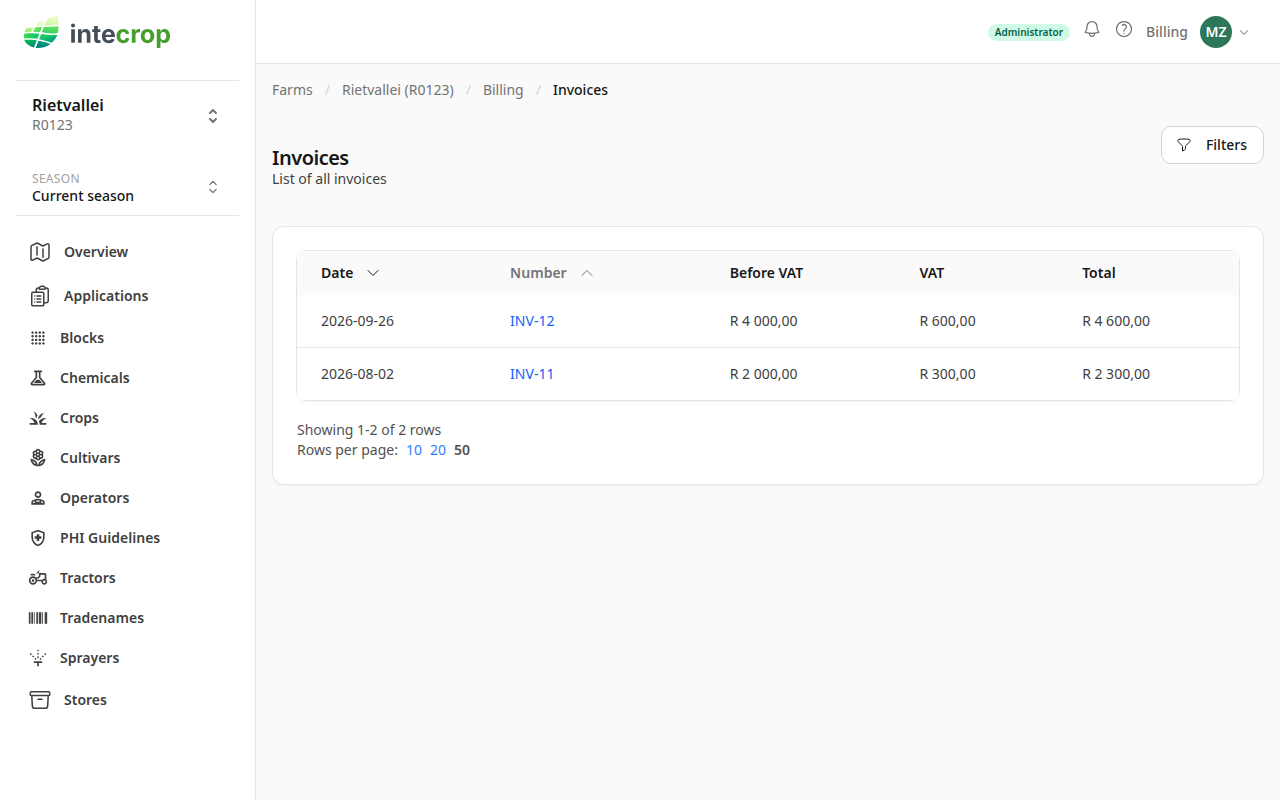
To find one invoice, use Filters and search by its date or its number.
Open an invoice by its number to see its lines, its totals, and its Due date — a month after the date of the invoice. Pay before that day: on the due date itself the payment already counts as overdue.
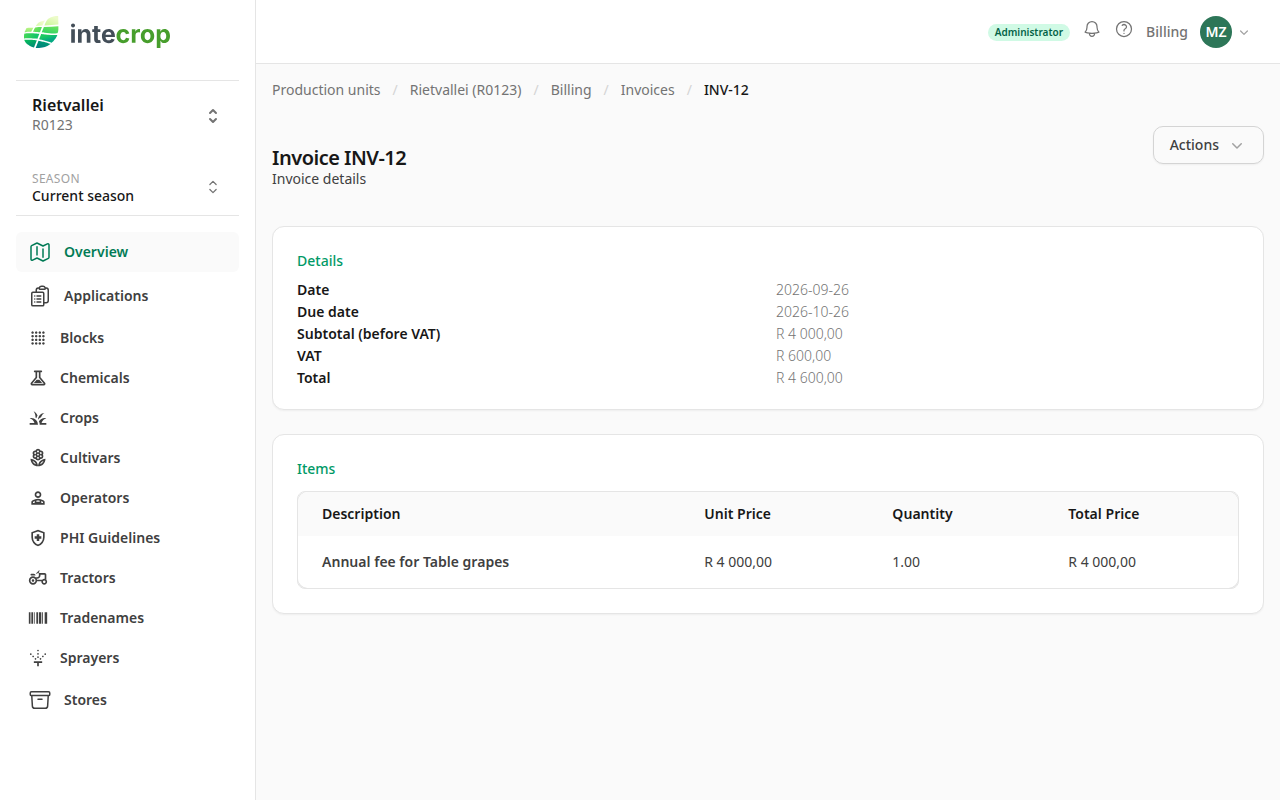
To download it, open Actions and choose PDF.
Every invoice is also emailed when we issue it, to the Invoice email address on your farm's details. To change that address, open your farm's page and choose Edit — an Administrator or a Manager can do this.
Pay
Pay by EFT. Our banking details are at the bottom of every invoice PDF and every statement PDF, under Banking details.
Use your PUC as the reference — the code printed next to Reference on the PDF. That is how the payment is matched to your farm. If your farm has more than one PUC, the PDF lists them all, and any one of them will do. A payment without it may not be matched automatically, and your account will show it as unpaid until someone finds it by hand.
Once the payment is in our account and matched to your farm, it shows on your statement as a PAY- line.
If a payment is overdue
Every night, Intecrop checks whether any invoice has reached its due date and is still unpaid. If one has, the farm's work is closed until it is paid: applications, blocks, chemicals and the rest all send you to Billing, which tells you the payment is overdue. Billing itself stays open, so you can always see what is owing and download the invoice.
Someone on the farm who cannot see Billing is sent to the farm's home page instead. Ask an Administrator, Manager or Financial Officer to deal with it.
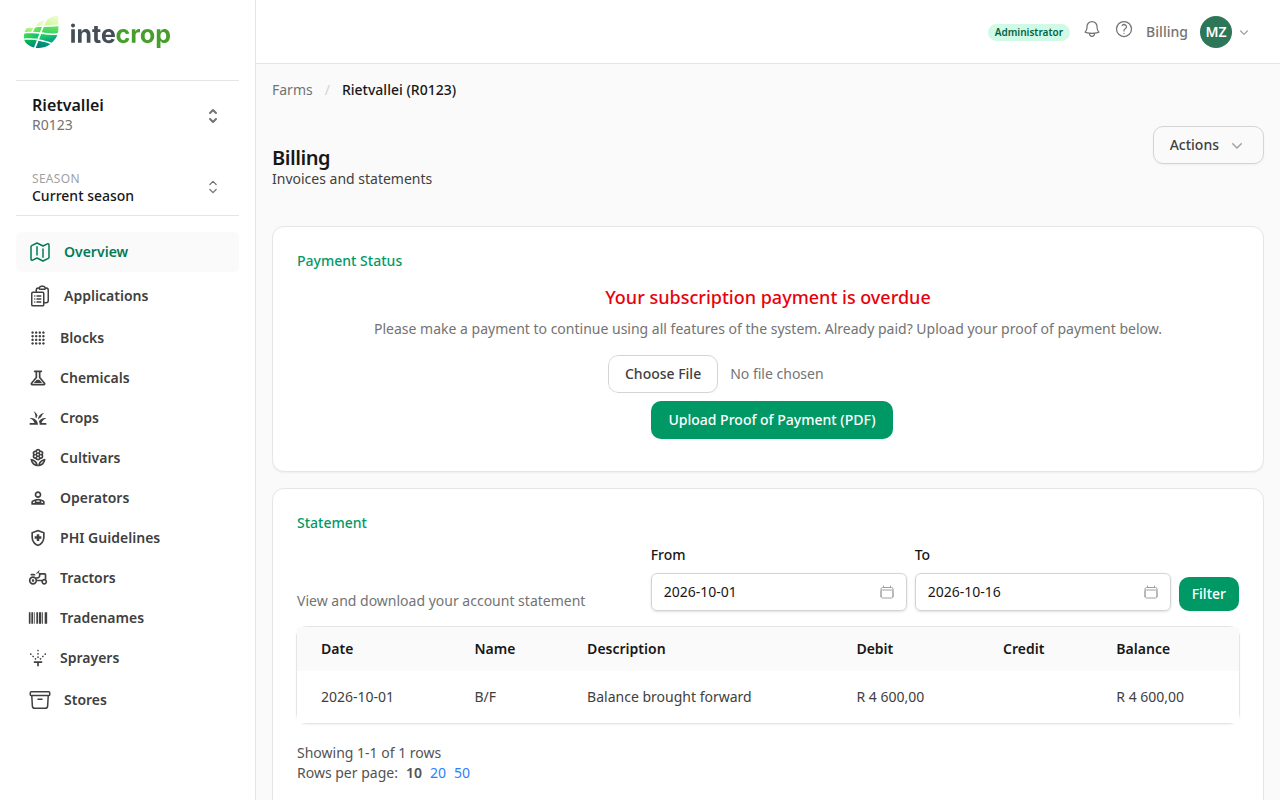
You have already paid
A payment can take a few days to reach us and be matched. You do not have to wait for that. Send us your proof of payment from this page, and the app opens again straight away:
- Choose the file. It must be a PDF — the payment confirmation your bank gives you — and no bigger than 10 MB.
- Press Upload Proof of Payment (PDF).
Intecrop reads the document to check that it is a payment to Intecrop. If it is, the page says Proof of payment is being reviewed. You have temporary access., and you can carry on working.
The access is for five days. In that time the payment should reach us and be matched. If it has not by then, the app closes again. This time the upload is not offered a second time: email your proof of payment to admin@intecrop.co.za instead.
Two things can stop the upload from opening the app:
- The file does not look like a proof of payment — an invoice, say, or a page with no payment on it. Upload your bank's payment confirmation instead.
- It is a payment, but not one we can match to your farm — the amount or the reference does not fit your account. We have it, and someone will look at it. If it is urgent, email admin@intecrop.co.za.
You have not paid yet
Pay as above, with your PUC as the reference. The app opens again by itself once the payment is matched to your farm, or straight away if you upload your proof of payment.