
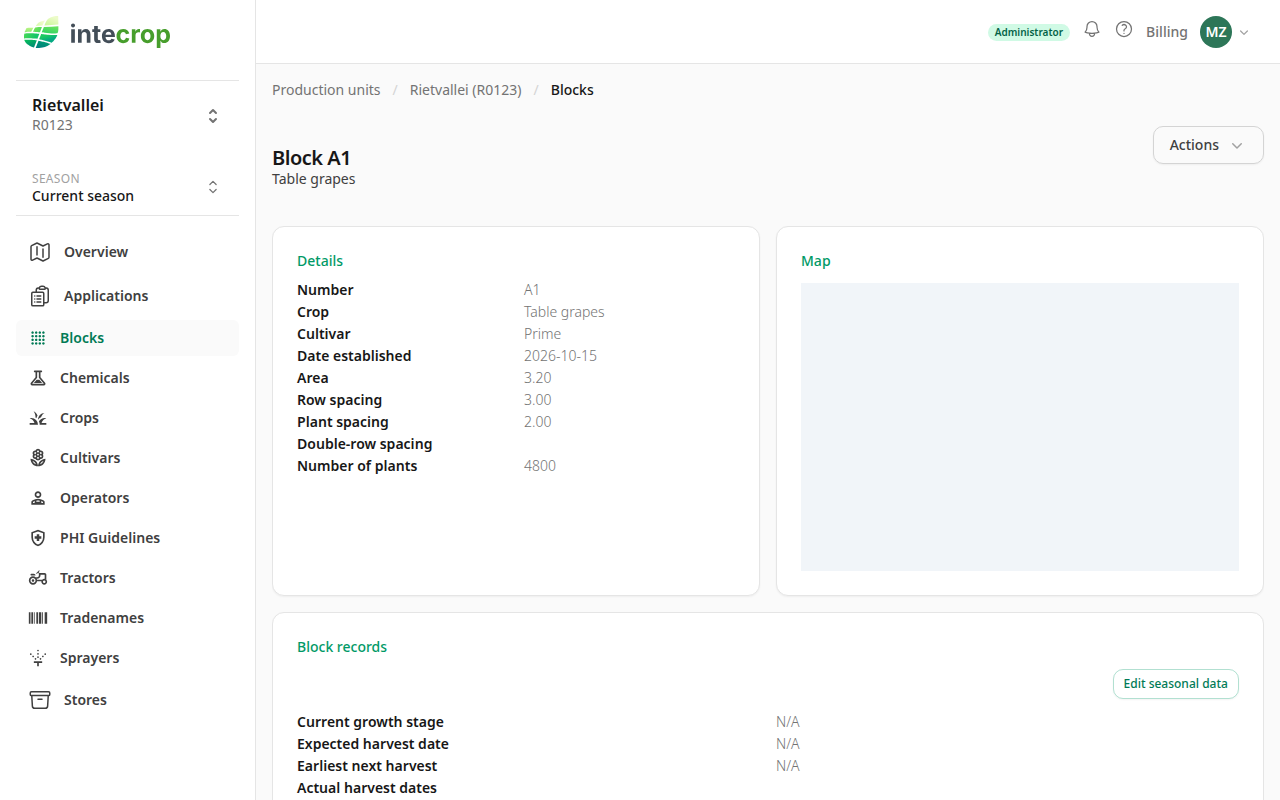
When a block is pulled out, do not delete it. Its applications, records and harvests are the history an auditor asks for. Retire it instead: the block stays, with everything recorded on it, and simply stops being in the ground from the date you give.
When the same ground is planted again, re-establish the block. That retires the old one and starts a new block with the same number in one step, so the new planting starts with a clean record and the old one keeps its own.
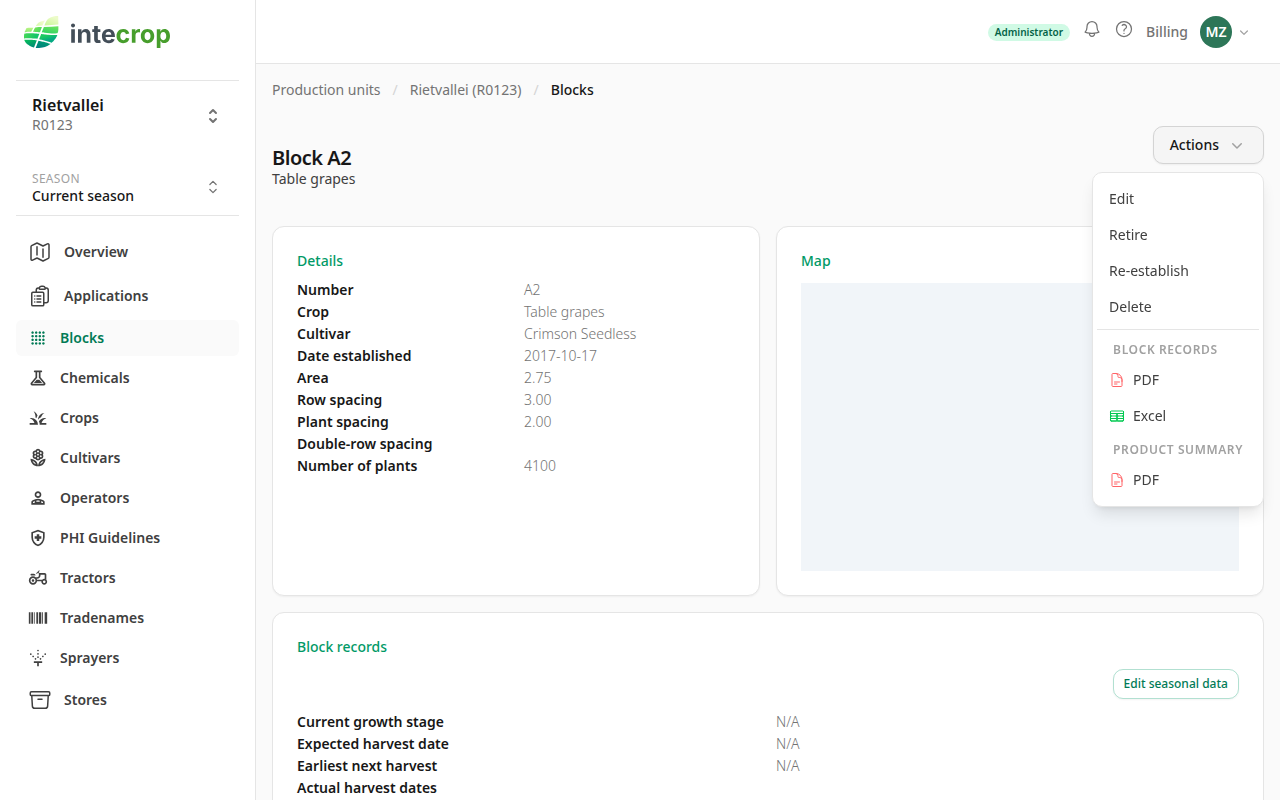
Both are on the block's own page, under Actions. Not sure whether to delete, retire or re-establish? See When to delete, retire or re-establish a block.
Retire a block
Open the block from the Blocks page, then choose Actions and Retire. The form asks for one thing: the Date retired. It opens on today.
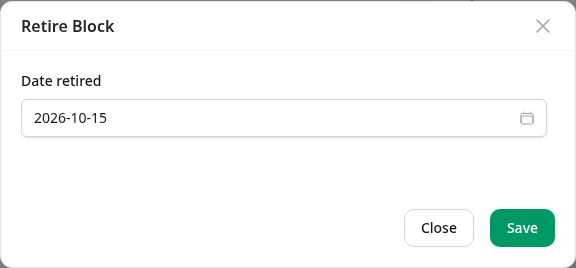
The date retired is the first day the block is out of the ground, not the last day it was in. Records dated on it or after it fall outside the block's life, so the date has to come after the last thing done on the block:
- Not in the future. Retire a block once it is out, not ahead of time.
- Not before the date the block was established.
- After the block's last record, and after every application it is on. That includes applications that are not finalised yet. A draft planned for next week still holds the block, and the form says so. To retire the block earlier, open that application and take the block off it first.
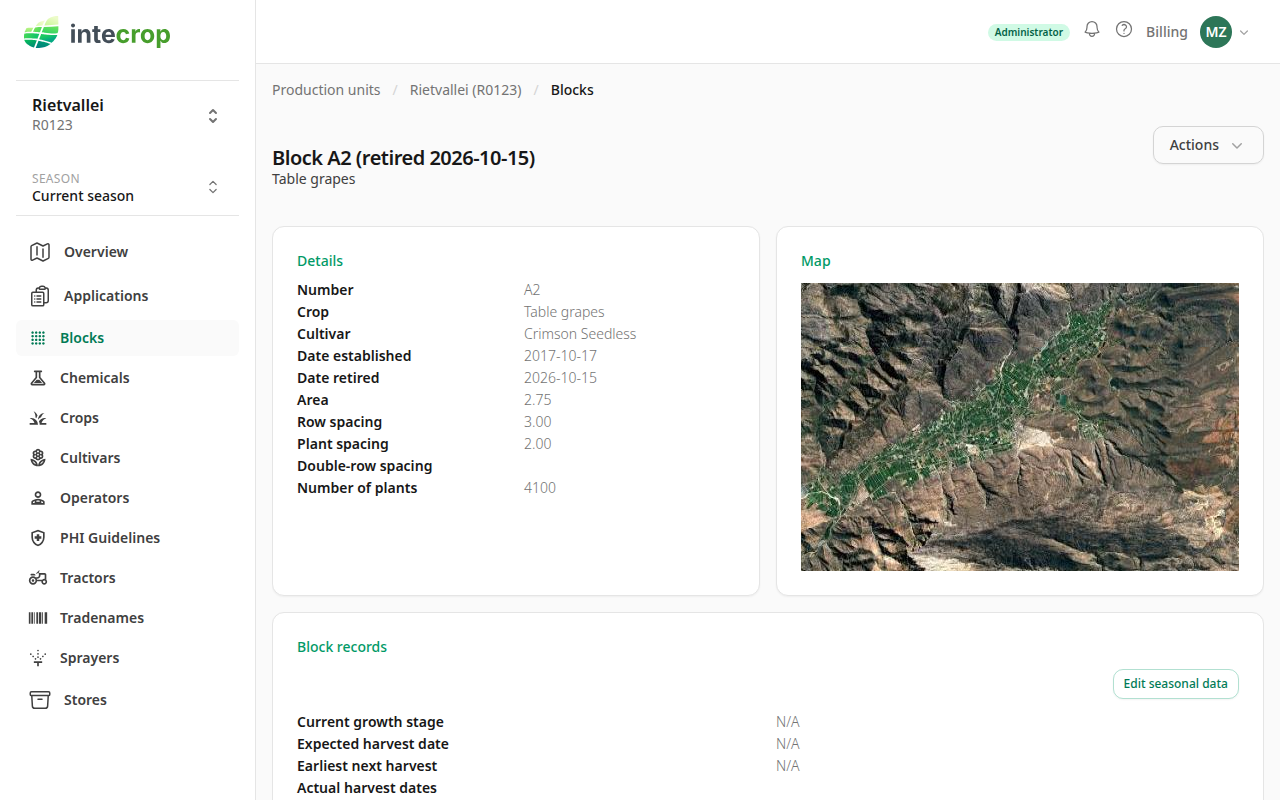
Press Save. You are back on the block's page, and its title now says
retired with the date. The date also shows in the details as Date retired.
Got the date wrong? The menu item is now Change retirement date. It opens the same form, on the date you saved. The new date must meet the same rules, and one more once the block has been planted again: it cannot move past the day the next block with that number was established.
Plant it again
Choose Actions and Re-establish on the block that is coming out. It is only offered while the block is still in the ground — once a retirement is recorded, it is gone from the menu (see Already retired it? below).
The form is the new-block form, filled in from the old block, with one extra field on top: Old block retired on. Both dates open on today.
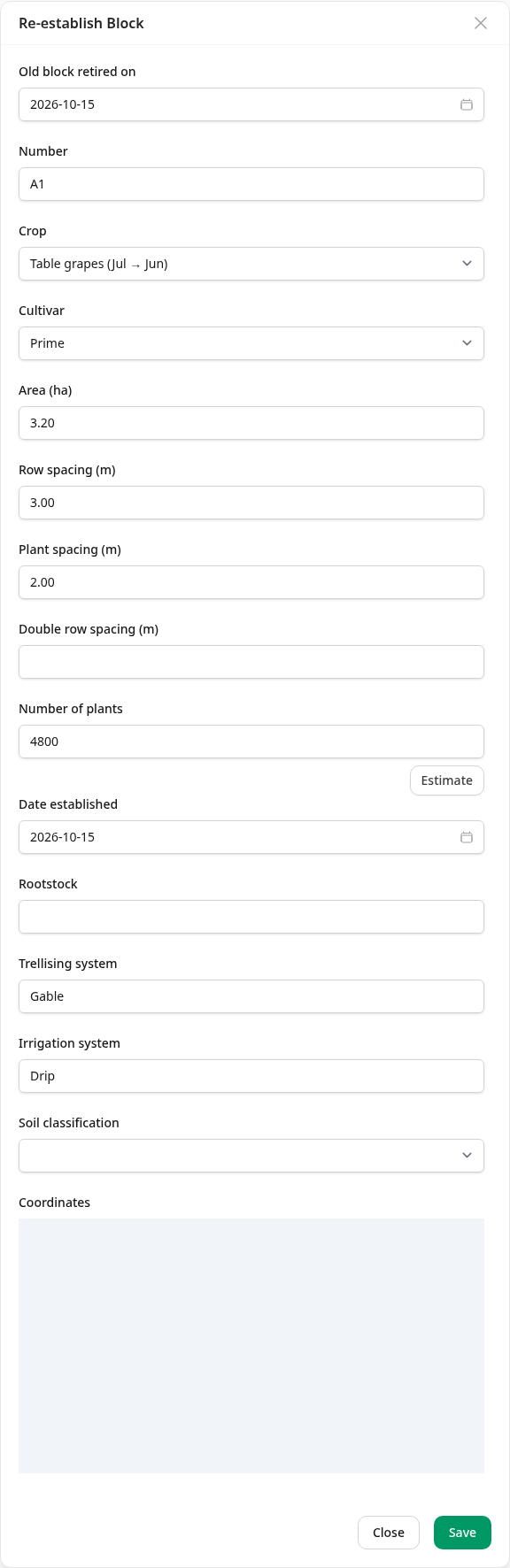
What is filled in is what describes the planting: the number, production unit, crop, cultivar, area, spacings, number of plants, rootstock, trellising, irrigation, soil and the map outline. Change whatever changed — a new cultivar is the usual one. If your farm has since removed the old block's production unit, that field is left empty for you to choose again; if it has removed the crop entry, the crop and the cultivar are both left empty. A new block cannot be planted on something the farm no longer has.
Set Date established to the day the new planting went in, and keep it on or after the old block's retirement date. The retirement date is the old block's first day out, so the same day for both is right; an earlier one would have both plantings in the ground at once, and the form does not stop you.
Press Save. One save does both halves — it retires the old block and creates the new one. If either half has a problem, nothing is saved and the form shows which date or field to fix. You land on the new block's page.
What happens to the old block's records
They stay on the old block. Re-establishing does not move anything. Every application, block record, growth stage and harvest recorded on the old block stays on the old block, and the new block starts with none. That is the point: the two plantings are separate blocks with separate histories that happen to share a number.
So in the seasons the old block was in the ground, its reports and exports read exactly as they did. From the new block's establishment on, what is recorded under that number is the new block's.
The Blocks page shows the blocks of the season chosen in the Season selector. A block retired partway through a season with nothing done on it in that season drops out of that season — it is not listed, and its area does not count. One with an application or a record in that season stays listed for it. So straight after re-establishing, this season's list usually shows one block with that number: the new one.
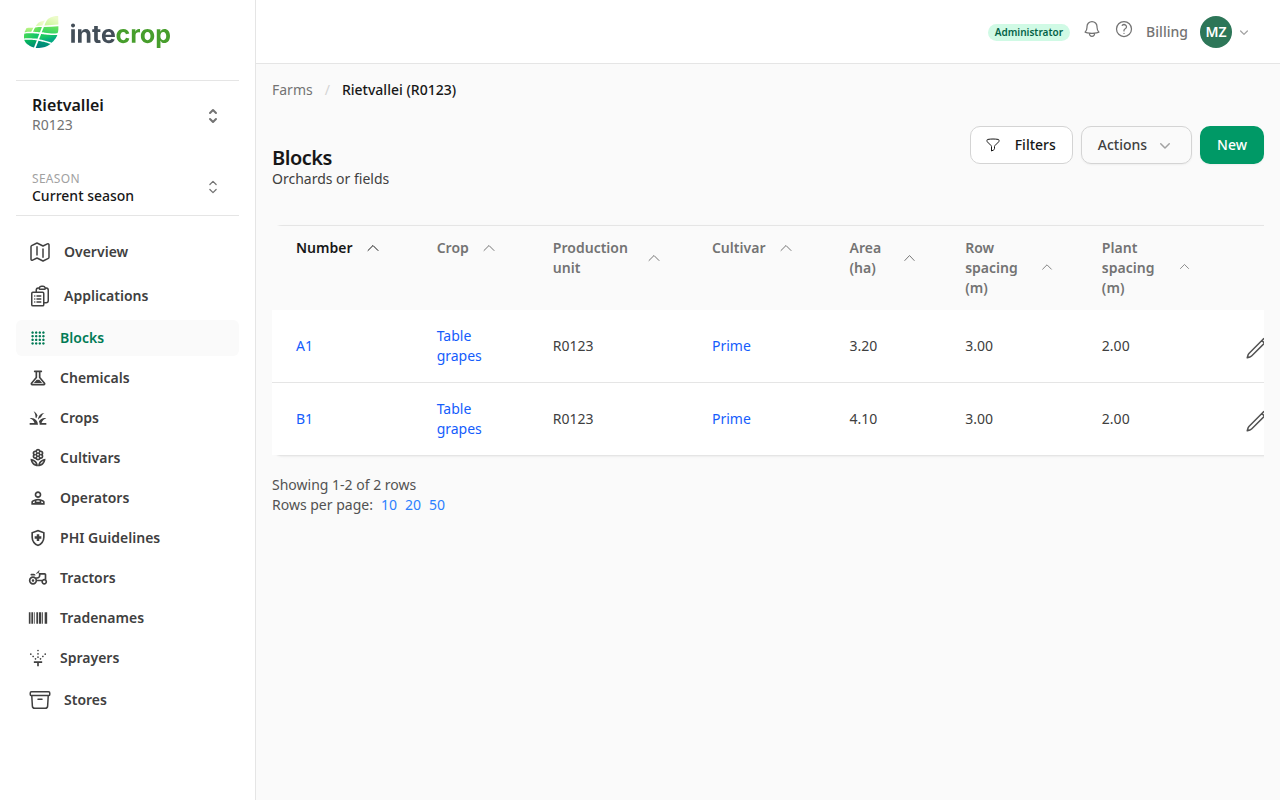
To find the old block, choose an earlier season, one it was in the ground for. See How seasons work for what decides which season a date falls in.
When retiring deletes the block instead
There is one case where Retire does not keep the block: nothing has ever been recorded on it — no application at any stage, no block record, no harvest — and you retire it in the same season it was established. Such a block never counted in any season, so there is nothing to keep, and it is deleted. The same goes for Change retirement date: moving a retirement into the season the block was established in deletes a block with nothing on it.
The form tells you before you save:
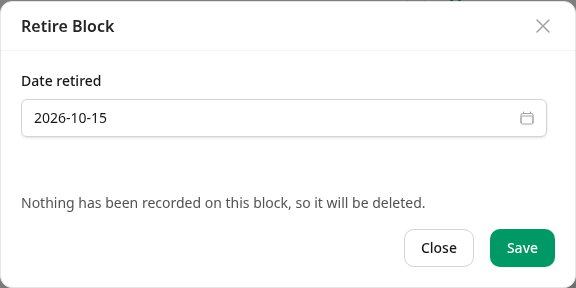
Nothing has been recorded on this block, so it will be deleted.
This cannot be undone. After saving you are taken to the Blocks page and the block is gone. It is usually what you want — a block created by mistake — but if the block really was in the ground and you meant to keep a trace of it, close the form instead.
Already retired it?
Re-establish is not offered on a block that already has a retirement recorded. Plant the new block from the Blocks page with New, using the same number. A number can be used again on a production unit as soon as the block that had it is retired. As with re-establishing, give the new block a Date established on or after the old block's retirement date, so the two plantings are never in the ground at the same time.
Retire, not delete
Delete, on the same menu, is for a block that should never have existed. It fails on a block with applications or records, and it removes growth stages and harvests for good. A block that has come out of production is retired. The difference is explained in When to delete, retire or re-establish a block.