
The instruction said what should happen. Once the work is done, the confirmation records what did: when each block was done, how much mixture the operators actually used, what was left over, and the weather at the time. Publishing it is what takes the chemicals out of your stock and writes the record each block keeps for an audit.
This guide starts where Record your first application ends: an instruction on the Apply step, printed and done.
Move to Record
Open the application and click Record on the stepper at the top.
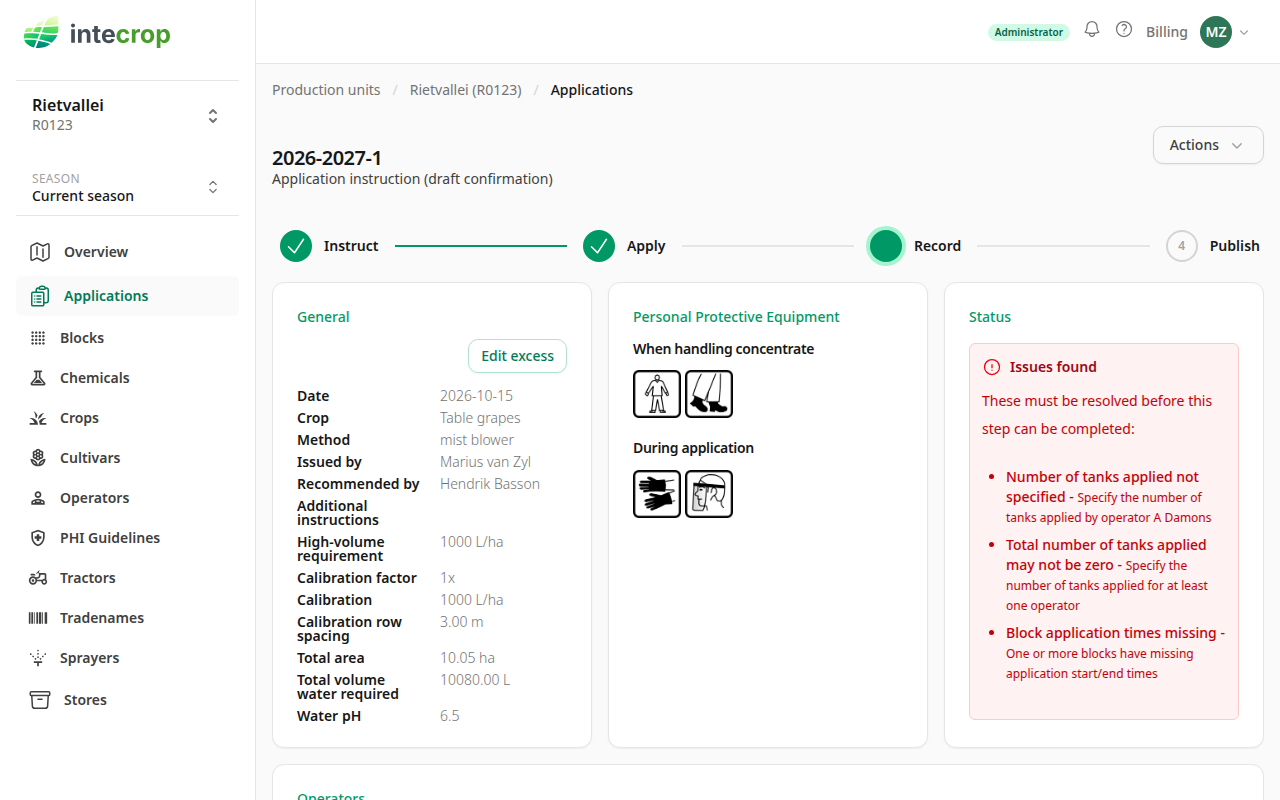
The instruction is now locked — blocks, chemicals and doses stay as they were issued. If the instruction itself was wrong, click Apply to step back, then Instruct to change it.
The Status card lists what is still missing, as it did for the instruction. On a new confirmation that is the times of each block and the number of tanks. Work through the list until it is empty.
Set the times for each block
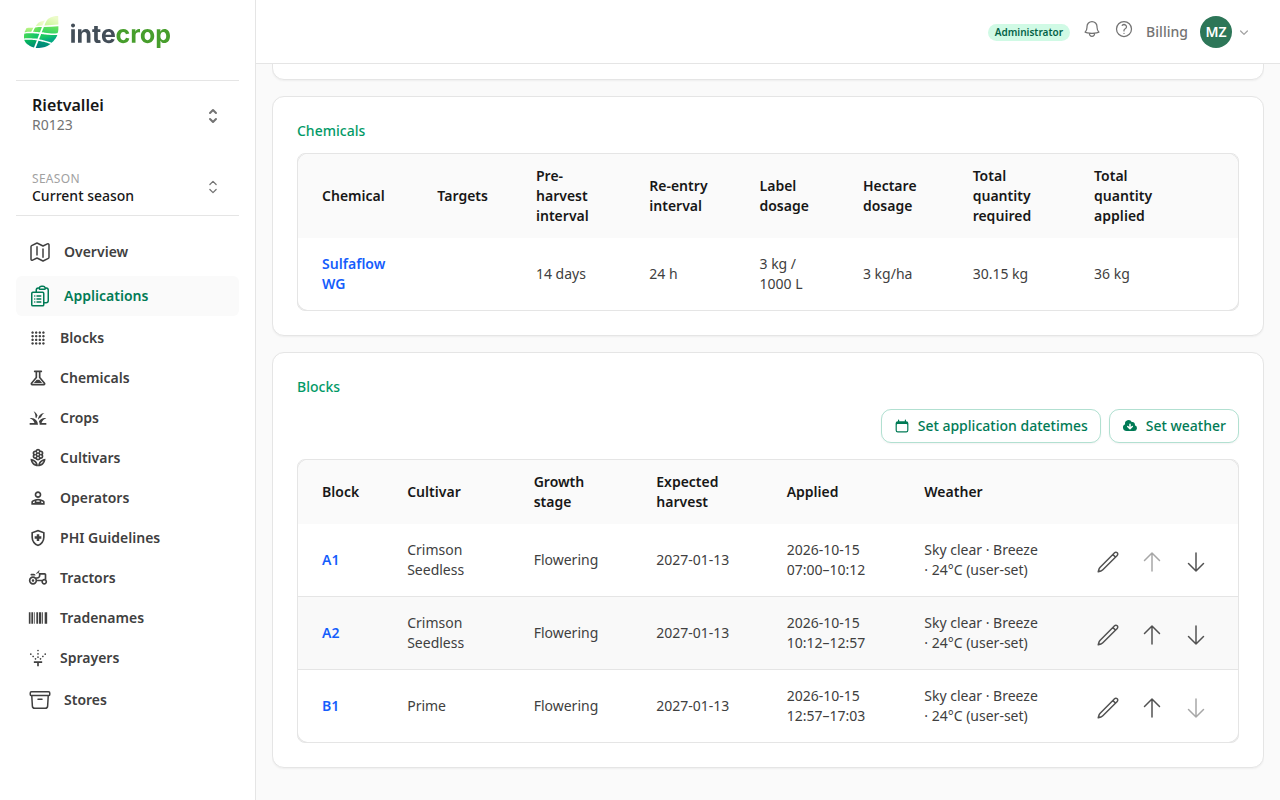
On the Blocks card, click Set application datetimes. One form fills in the blocks at once.
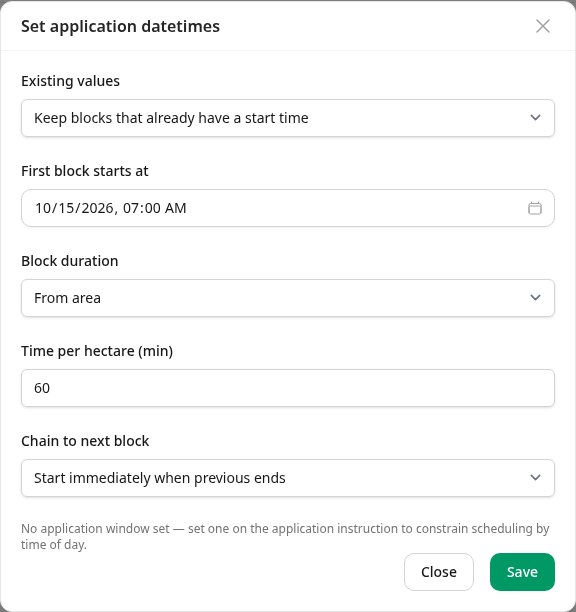
- Existing values — Keep blocks that already have a start time leaves those blocks as they are and fits the others around them. Reset all and start over clears them first.
- First block starts at — the date and time the first block was started.
- Block duration — From area works out each block's time from its hectares; Fixed minutes per block gives every block the same time.
- Chain to next block — when the next block starts: straight after the previous one, or after a break. Start at next application-window opening moves it to the next day, and needs an application window on the instruction.
Save, and the Applied column shows each block's date and times. In the example, 60 minutes a hectare from 07:00 puts A1 (3.20 ha) at 07:00–10:12, and A2 starts where A1 ended.
If one block was done on another day, set it on its own with the pencil on its row: it takes a date, a start time and an end time.
Say how many tanks went out
Click the pencil on the operator's row, on the Operators card.
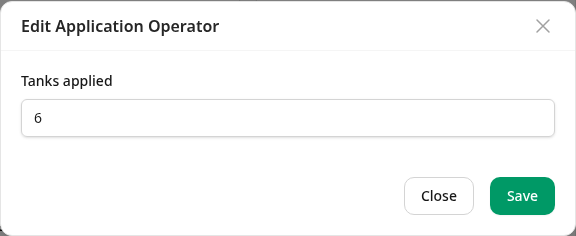
For a mist blower the confirmation asks for one number per operator: the tanks they applied. Everything else is worked out from it. Here every tank holds 6 kg of Sulfaflow WG — 3 kg per 1000 L in a 2000 L tank — so six tanks is 36 kg, and that is what the Total quantity applied column on the Chemicals card now shows.
Some methods count batches rather than tanks. Methods with neither ask for the quantity of each chemical instead.
Read the warnings
Below the list of what is missing, the Status card can show Warnings. They do not stop you from publishing. They are there because the application has already happened and cannot be undone — they point at a number worth checking before it goes on the record.
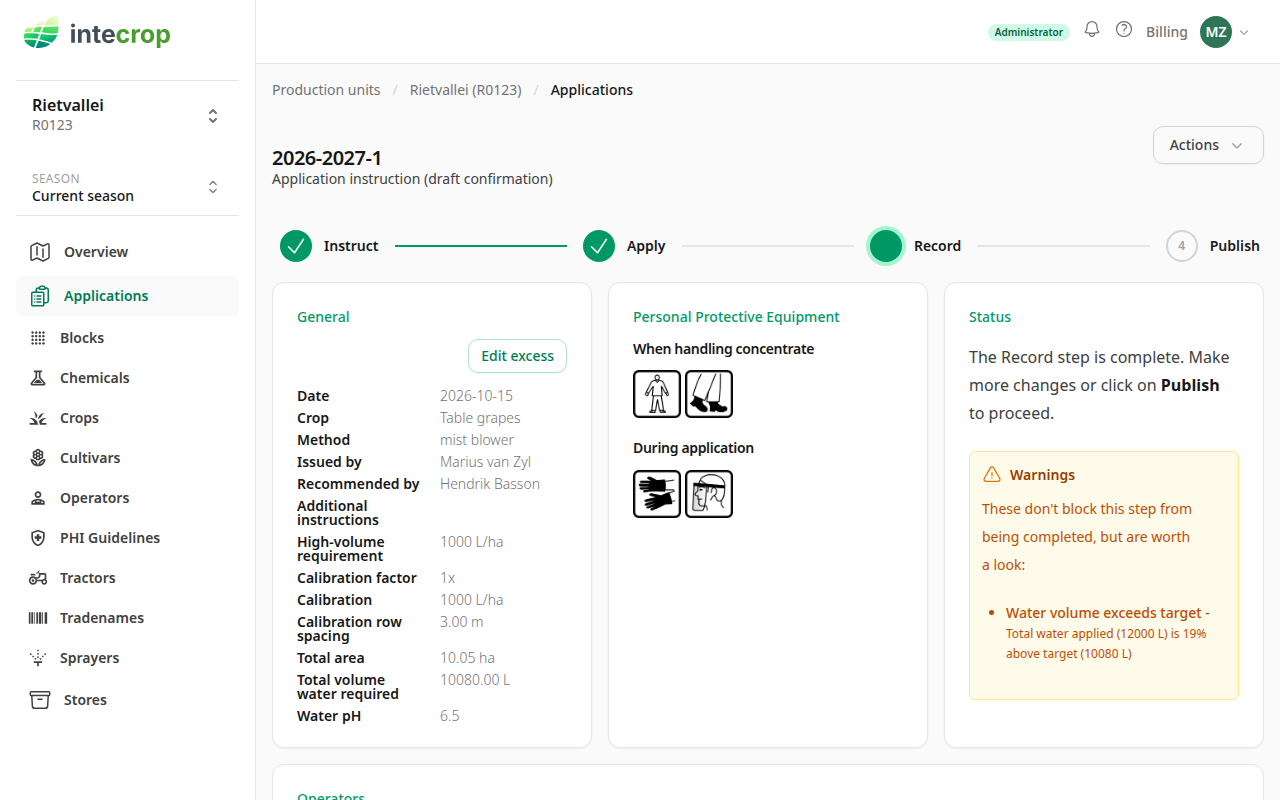
There are three:
- The water does not match the target. For methods that work from a calibration, tanks times tank size, less any excess you record, is compared with the water the instruction asked for, and anything more than 5% over or under is flagged. Here six tanks is 12 000 L against 10 080 L, 19% over. An instruction without a calibration row spacing is checked block by block instead, and only for going over.
- A block started before the instruction's date. Usually a typing slip in one of the dates.
- A block's expected harvest is too soon. Counted from the day the block was done, the longest pre-harvest interval of the chemicals reaches past the harvest date set on the block.
Record the excess mixture
If mixture was left over, that explains the warning above. Click Edit excess on the General card.
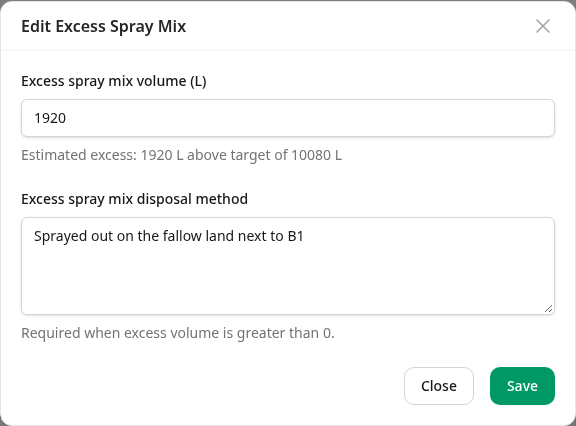
The hint under the volume is the difference between what went out and the target, as a starting point. Enter what was actually left, and how it was disposed of — the second field is required as soon as the volume is more than zero.
The excess is taken off the water shared out over the blocks, so each block's record carries the water and dose that went onto it. It does not change what leaves the store: the chemical in the excess was mixed all the same, so all 36 kg still comes out of stock.
Only methods that work from a calibration — a mist blower, for example — have an Edit excess button.
Check the weather
Each block's weather is filled in for you, from the farm's location and the block's times. You do not have to wait for it before publishing; it keeps filling in afterwards. Where the weather comes from explains the states it can be in and why a value can change once.
When it says Weather unavailable, or you know the conditions were different, click Set weather on the Blocks card and choose Enter manually.
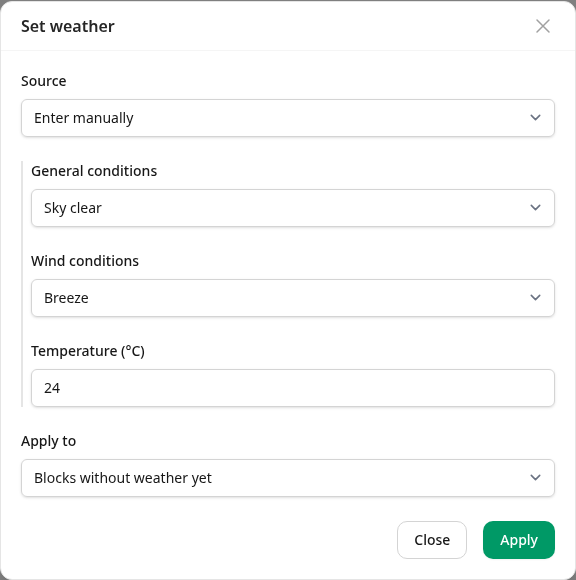
Apply to starts on Blocks without weather yet, so it cannot overwrite anything already there. To replace weather a block already has, choose All blocks — or, for one block on its own, use the pencil on its row.
When nothing is missing, the Status card says the Record step is complete.
Publish
Click Publish on the stepper.
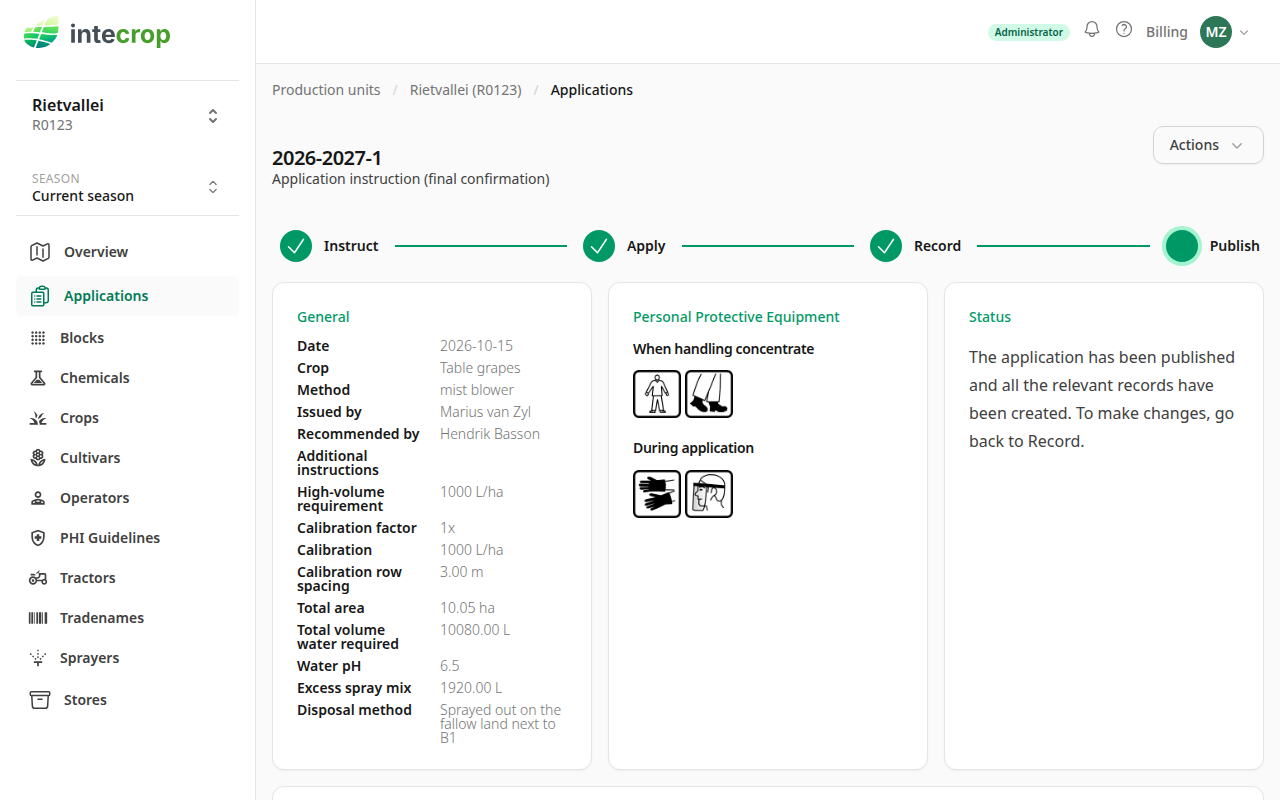
This is the step that writes the records. Until now nothing has moved:
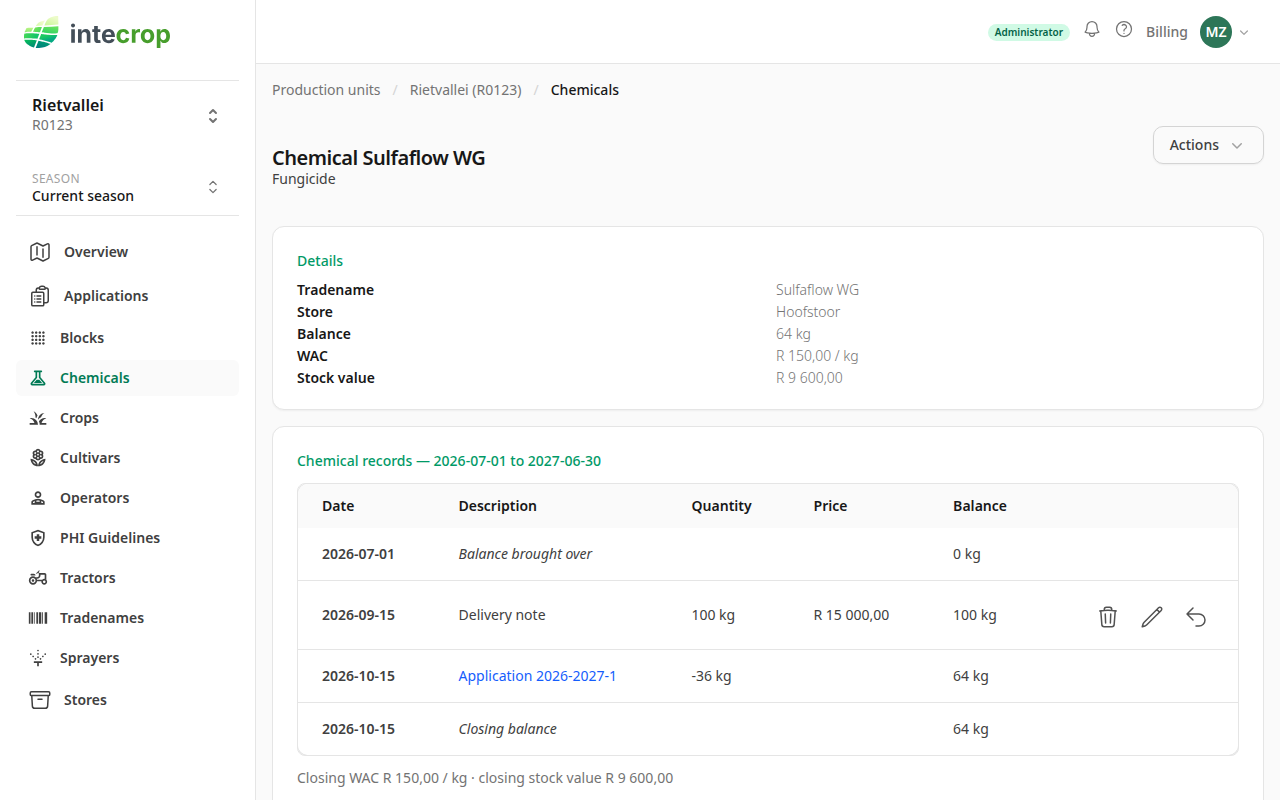
- Each chemical comes out of stock, by the total quantity applied, on the application's date — the Date on the General card, not the blocks' dates.
- Each block gets its record of the application: the date and times, the growth stage, the water and dose worked out for it, the weather, and — where a pre-harvest interval is known — the earliest date it may be harvested.
An application dated in the future cannot be published — it has not happened yet. Correct the date on the instruction first.
The Actions menu now offers the confirmation as a PDF, next to the instruction.
Open the chemical from the Chemicals menu and the application is there, as a line linked back to it.
Changing it afterwards
Click Record on the stepper. The stock records and block records the publish wrote are removed, and the confirmation is a draft again. Make the change and publish again: the records are written afresh.