
Your foliar feeds are logged as applications, like everything else that goes
into the tank. That is right for your own records, but a crop protection audit
wants the crop protection only. By the end of this guide you will have tagged
your foliar feeds Programme: Foliar feed and downloaded an application
summary without them. It takes about five minutes, and you do the tagging only
once.
Here, the farm has two foliar feeds, Blaarvoer Plus and Spoorvoer Zn. One application put Blaarvoer Plus on blocks A1 and A2 in the same tank as a fungicide, Sulfaflow WG.
You need to be a farm admin or a manager to put tags on chemicals. Anyone on the farm can download the summary.
Tag the foliar feeds
In the left-hand menu, choose Chemicals. Open Actions and choose Tag chemicals.
Under Categories, tick Fertiliser (group 2). That ticks Blaarvoer Plus and Spoorvoer Zn, and nothing else. If your foliar feeds are in more than one category, or share one with products that are not foliar feeds, tick each feed under Chemicals instead.
Under Key, type Programme, and under Value, Foliar feed. The line
next to Tag says Puts Programme: Foliar feed on 2 chemicals. A chemical
that already has a Programme gets this value instead.
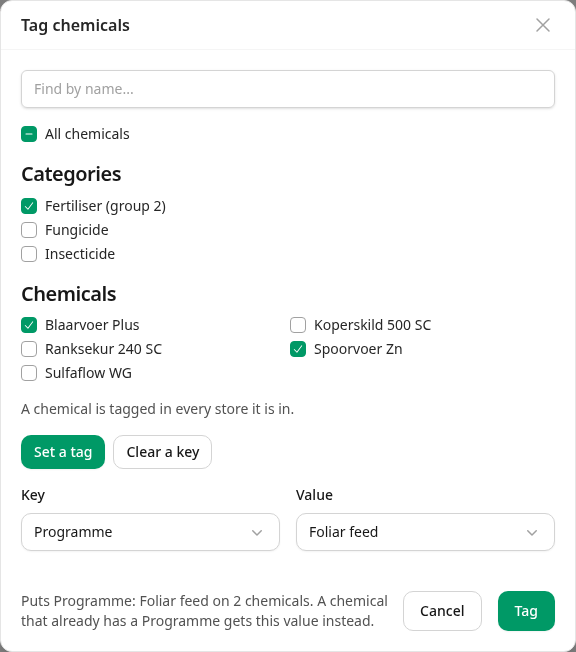
Press Tag. Intecrop confirms with Tagged 2 chemicals Programme: Foliar feed. The tag is on the product, so it counts in every store, and on every application the product was ever in. When you buy a new foliar feed, tag it too. Tag your chemicals has the rest: tagging one chemical at a time, and taking a tag off.
Open the application summary
Choose Applications in the menu. Open Actions and choose Pivot table, under Application & cost summary. If your role does not see money, the heading reads Application summary.
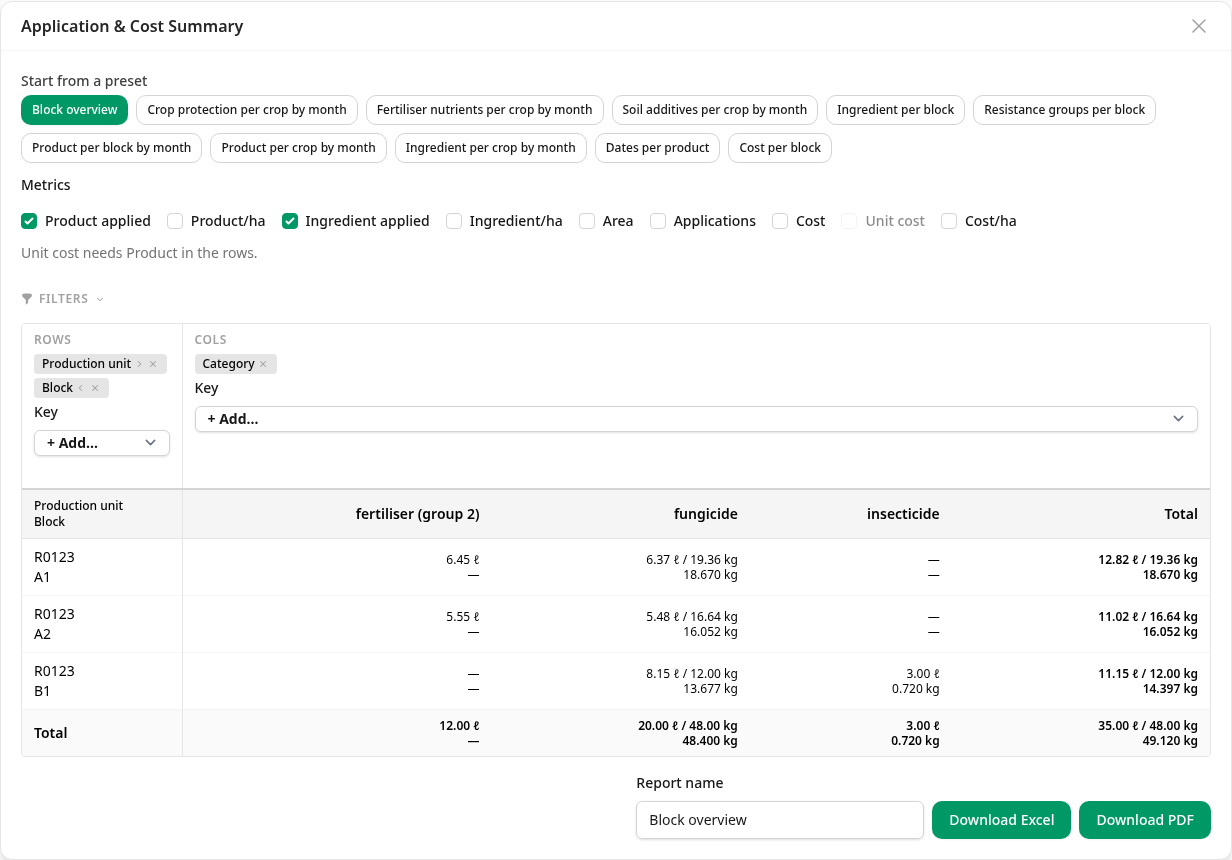
The summary opens on your current season, with blocks down the side and categories across the top. The foliar feed has a column of its own, fertiliser (group 2): 6.45 ℓ of Blaarvoer Plus went onto A1. Beside it, A1's fungicide column shows 6.37 ℓ / 19.36 kg. Part of that is the Sulfaflow WG that went into the same tank as the foliar feed.
Leave the foliar feeds out
Click Filters. At the bottom of the panel is Tags. Choose:
- Include or leave out — Leave these out
- What — Chemicals
- Key — Programme
- Values — tick Foliar feed
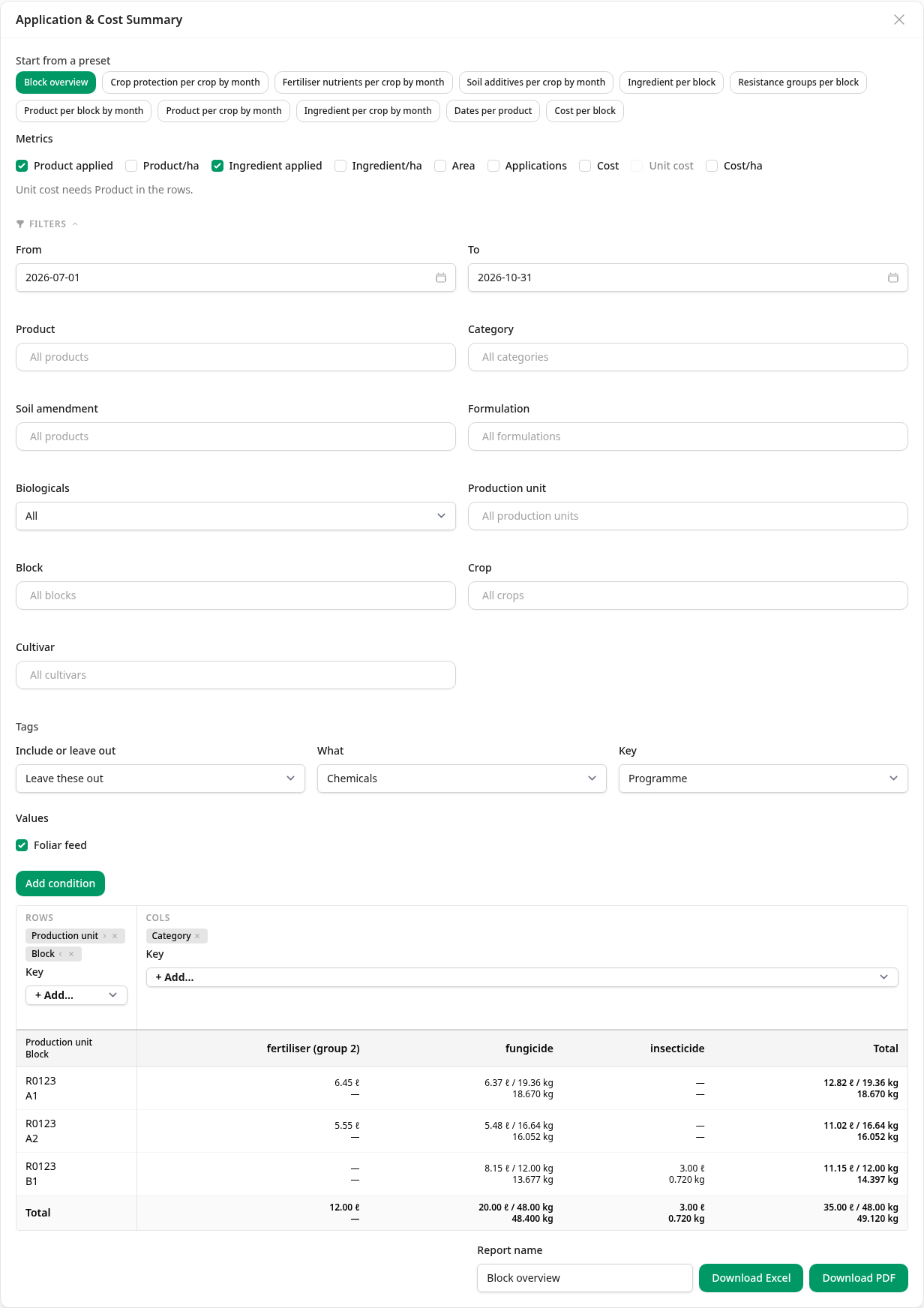
Press Add condition. The condition is written out under Tags: Leaving out chemicals tagged Programme: Foliar feed. Records left with no chemicals are left out too.
Close Filters again. The fertiliser (group 2) column is gone. A1's fungicide column still shows 6.37 ℓ / 19.36 kg: the Sulfaflow WG from the foliar feed's tank is still counted.
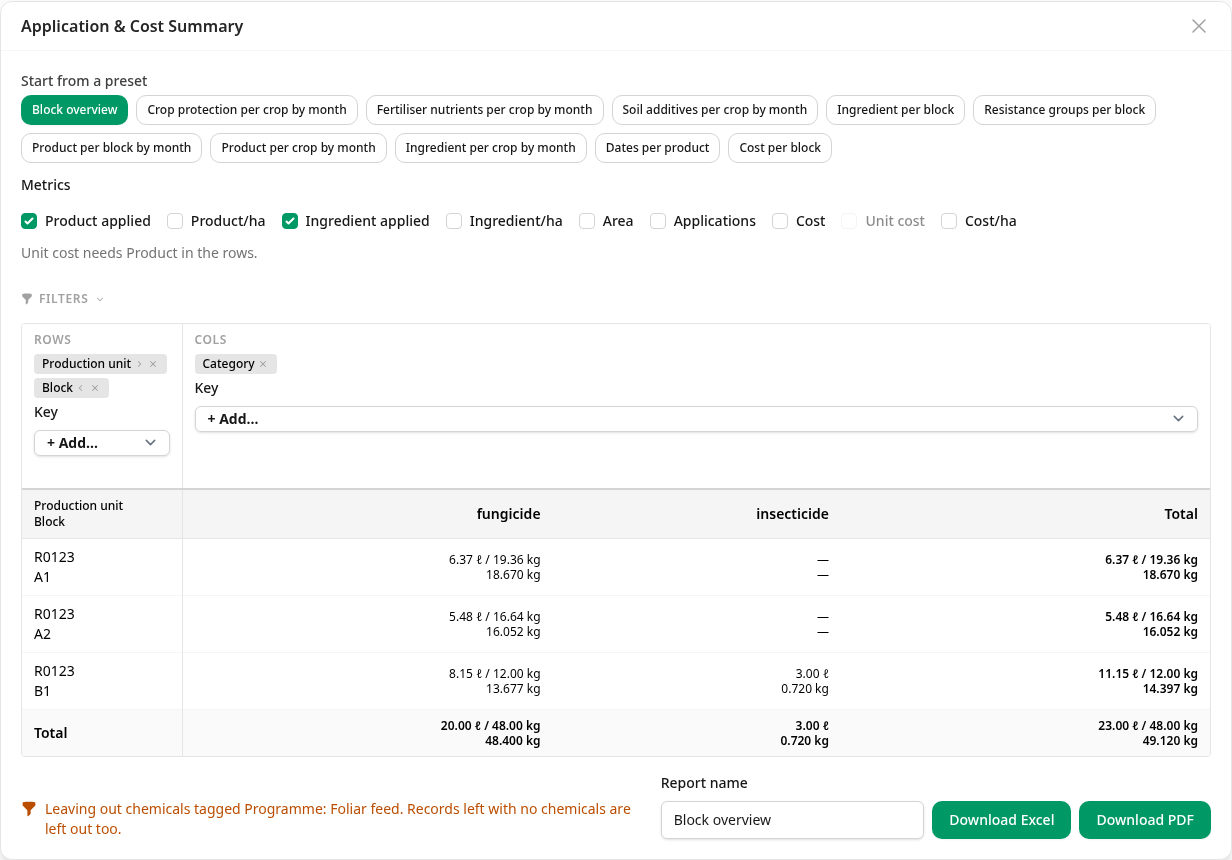
That is what leaving a chemical out does. It takes that chemical's lines off the summary. It does not hide the applications it was in: whatever else went into the same tank stays. Only an application that put on nothing but foliar feed goes from the summary completely, because it has nothing left to show. That is what Records left with no chemicals are left out too means.
The same sentence sits next to Download PDF and Download Excel, so you can see what the download will leave out. The tag itself is not printed on the PDF or put in the spreadsheet. The auditor sees only the crop protection. Download it and send it.
Leave them off an application's PDFs too
The same tag works on one application's own PDFs. Open an application that had a foliar feed in it, open Actions and choose Export…. The export offers only Chemicals under What. Choose Leave these out, Programme, tick Foliar feed, and press Add condition.
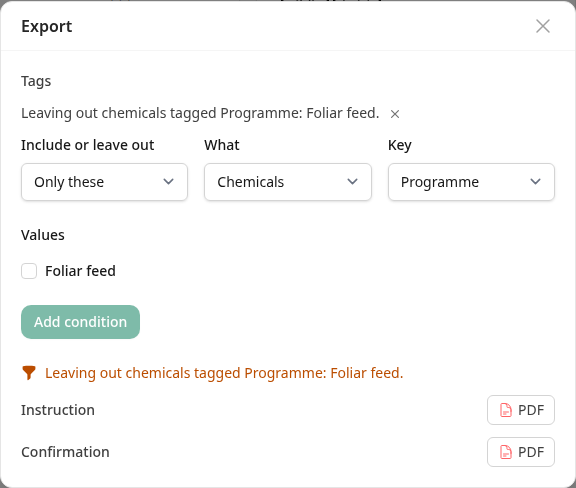
The condition reads Leaving out chemicals tagged Programme: Foliar feed., and both the Instruction and the Confirmation download without the foliar feed. The application itself stays on both. The confirmation is only offered once the application is published.
Be careful with the instruction. It goes to the person mixing the tank, and a product left off it does not get applied. Leave the foliar feed off only when another instruction carries it.
What next
Tags work the same way on blocks and applications: Use: Raisins on the
blocks that are dried, Buyer: Woolworths on the applications done for a
buyer. What tags are for explains which report can
use which kind of tag, and
Create an application summary covers the rest
of the summary.