
By the end of this guide your farm will exist in Intecrop, with its production unit code, its location and the details its invoices go to. It takes about five minutes. Have your PUC code and your business details at hand.
Start a new farm
Log in. If your account does not belong to a farm yet, the first page says so.
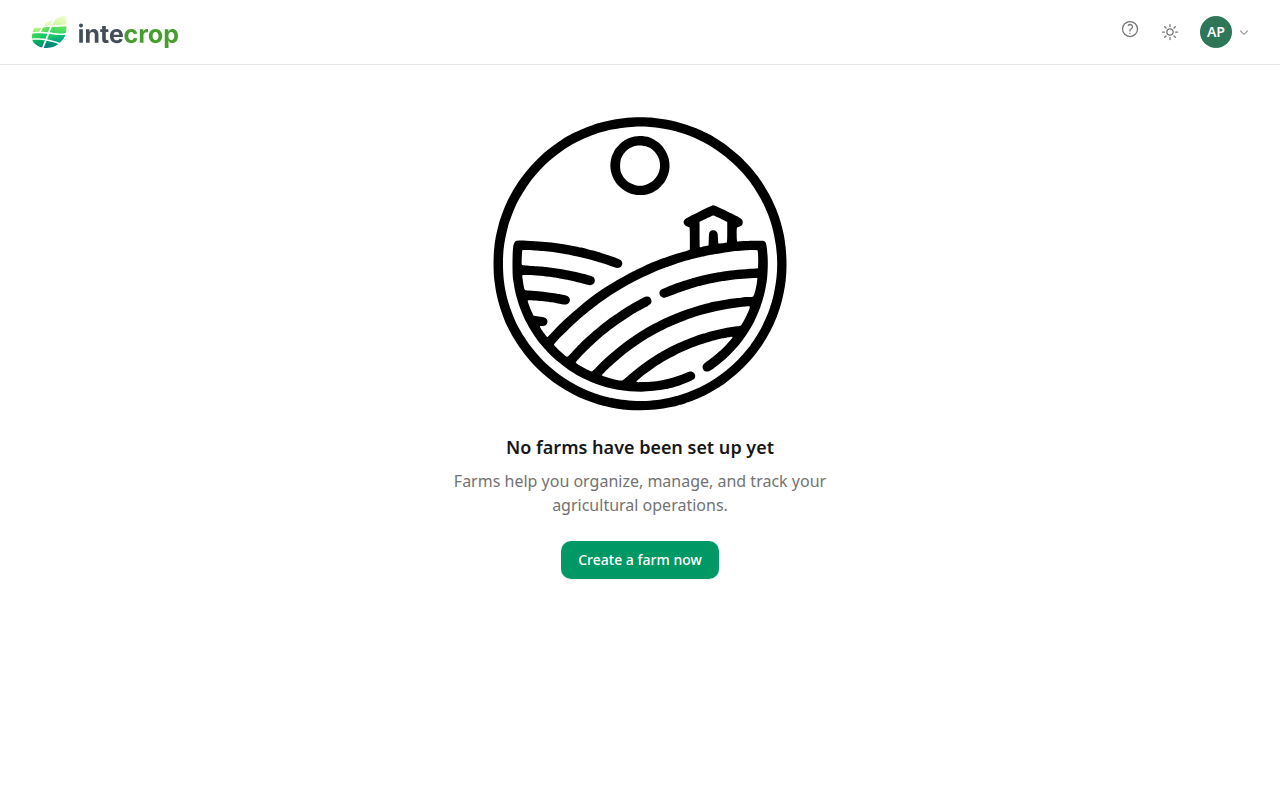
Click Create a farm now. If you already have a farm and are adding another, click New on the farm list instead (on a phone, New farm in the round menu button) — the steps are the same.
Step 1: Basic info
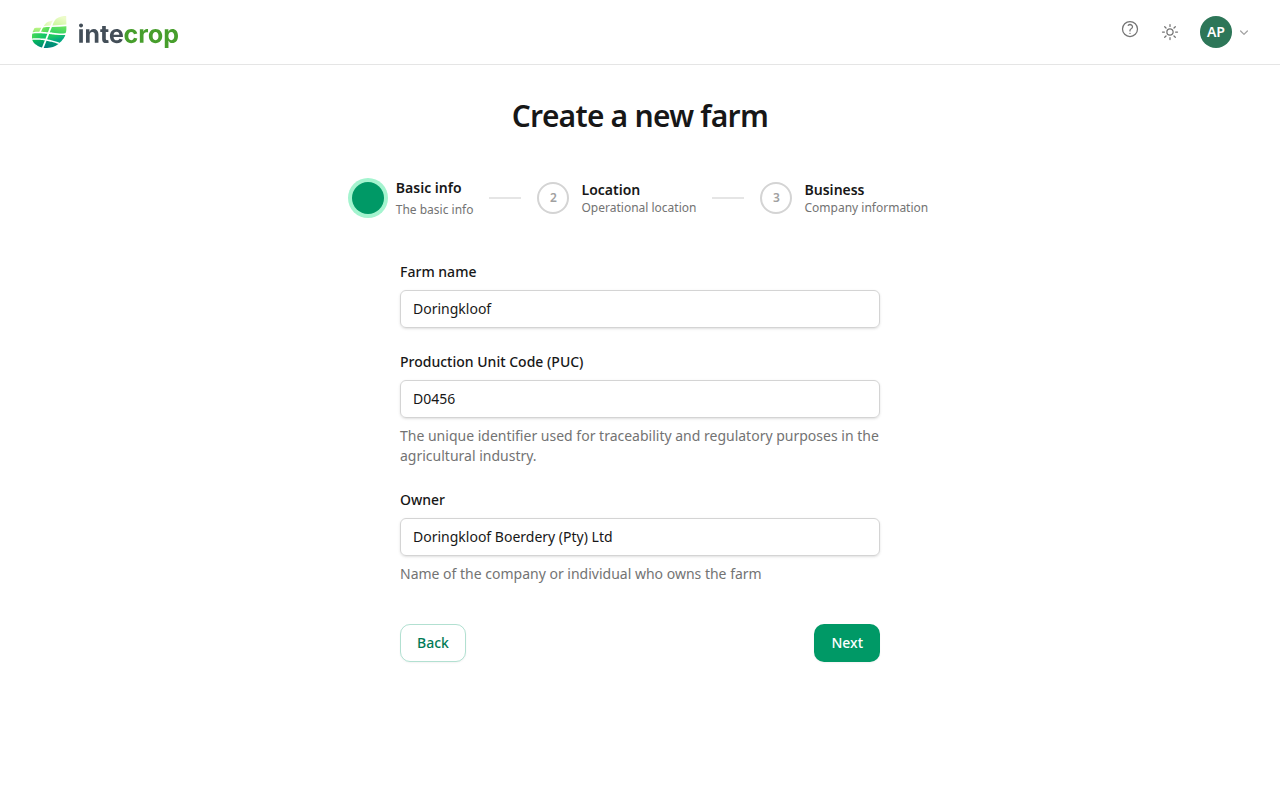
- Farm name — what you call the farm. It shows at the top of every page.
- Production Unit Code (PUC) — the code issued to you for traceability, in capital letters and numbers only, e.g. D0456. This becomes the farm's first production unit, and every block you add later belongs to one. If the farm has more than one code, add the others once setup is done; Farms and production units helps you decide whether they belong on this farm at all.
- Owner — the company or person who owns the farm.
Click Next. The farm is saved at this point, so if you stop here you can come back to it: it shows on your farm list, and opening it takes you back into setup.
Step 2: Location
Type the name of the farm or the nearest town into Search the location of your farm. A list of places appears as you type.
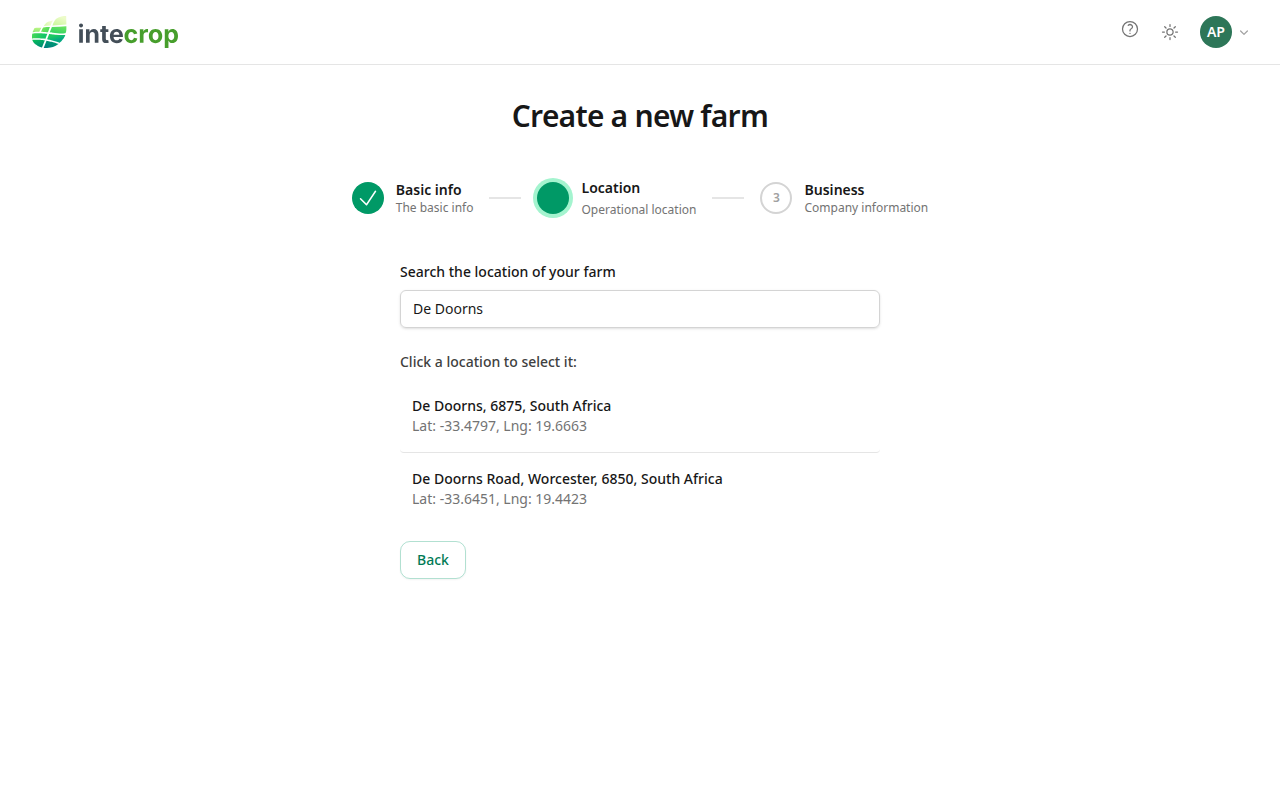
Click the one that is right. There is no separate Next button: choosing a place saves it and takes you to the last step. If nothing fits, try a more specific search, e.g. the town and the province.
If you leave and come back to this step later, it shows the place you chose instead of the search, with Change location to search again and Next to carry on.
The location is what puts your farm on the map, and it is where the weather for your applications is fetched from.
Step 3: Business
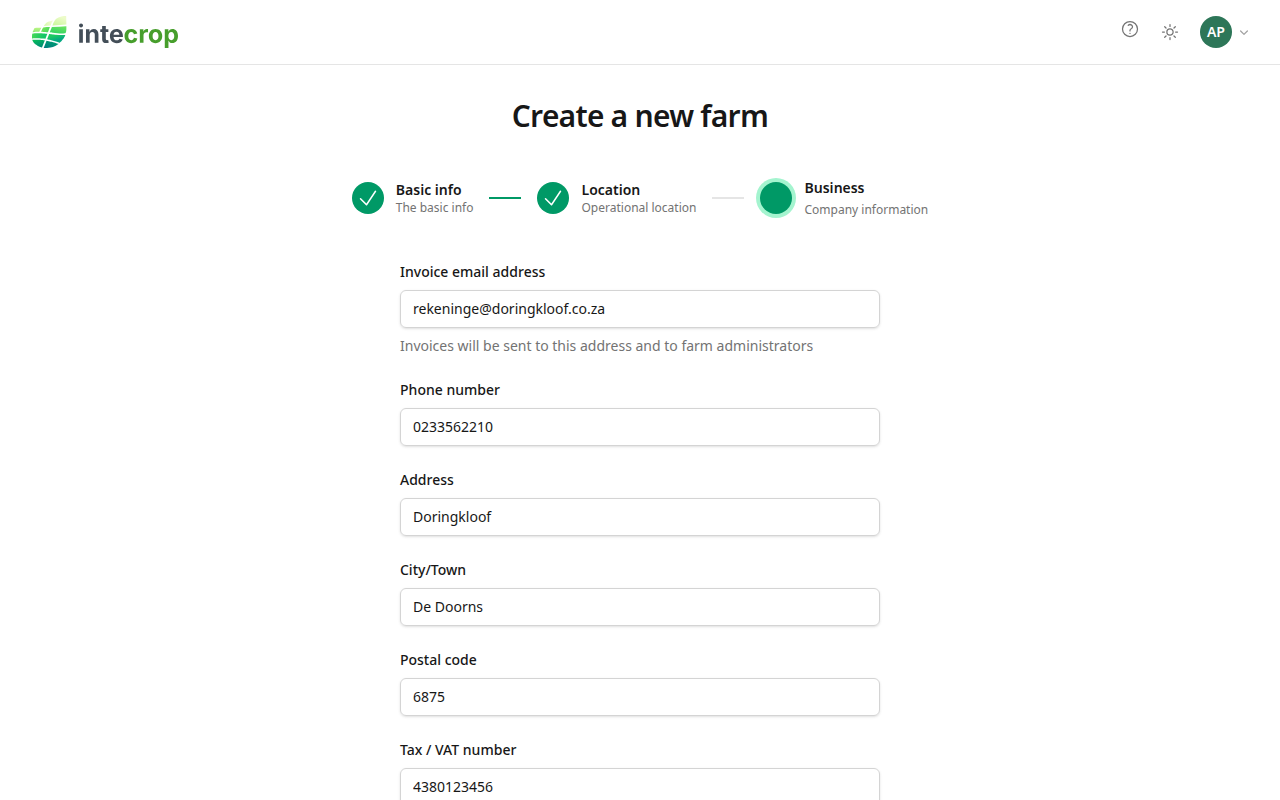
These are the details your invoices are made out to.
- Invoice email address — invoices go to this address and to the farm's administrators.
- Phone number, Address, City/Town and Postal code — all needed.
- Tax / VAT number — if you have one.
Click Complete. This starts your subscription: the first invoice follows about a month later.
Your farm's overview
You land on the farm's Overview: its details, its map, its production units and the people who can use it. You are its first administrator.
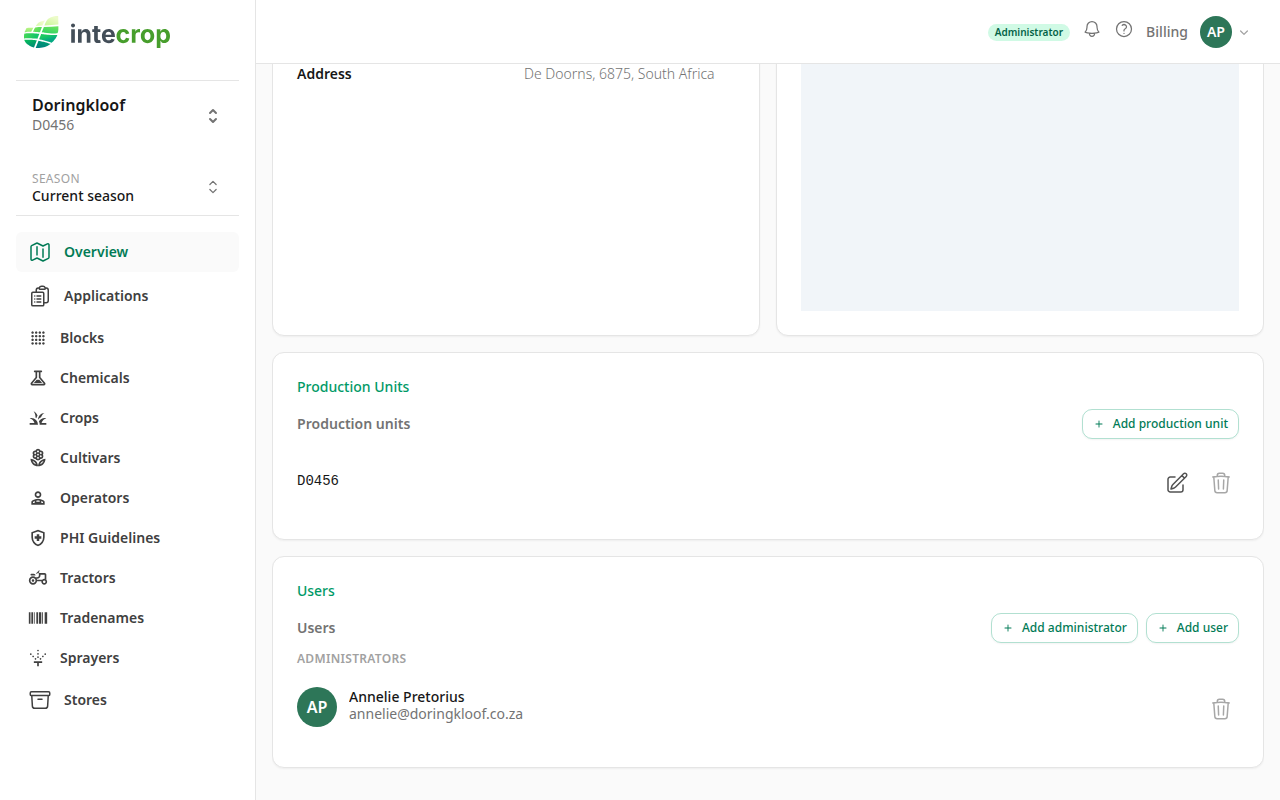
Everything here can be changed later from this page — the farm's details with Edit at the top, more codes with Add production unit, and more people with Add administrator or Add user.
What next
The farm exists, but there is nothing on it yet to apply anything to. Before you can record an application you need the following, each from its own page in the left-hand menu:
- Crops — each crop you grow, and the month its season starts.
- Cultivars — only if a cultivar you grow is not on the list already.
- Blocks — your orchards or fields, each with its production unit, crop, cultivar and area.
- Stores — at least one chemical store.
- Chemicals — the products in that store, with what you have on hand.
- Operators — the people who do the work.
- Tractors and Sprayers — if you use them.
With those in place, Record your first application takes it from there.