
Most applications repeat. The same mixture goes onto the same blocks every few weeks, with the same people and the same tractor. You do not have to build that instruction from nothing each time: start from the last one, and change only what is different.
The earlier application is the template. It is not changed. You get a new application with a number of its own, as a draft instruction, ready to edit and print like any other.
There are two ways in. Both open the same window.
From the applications list
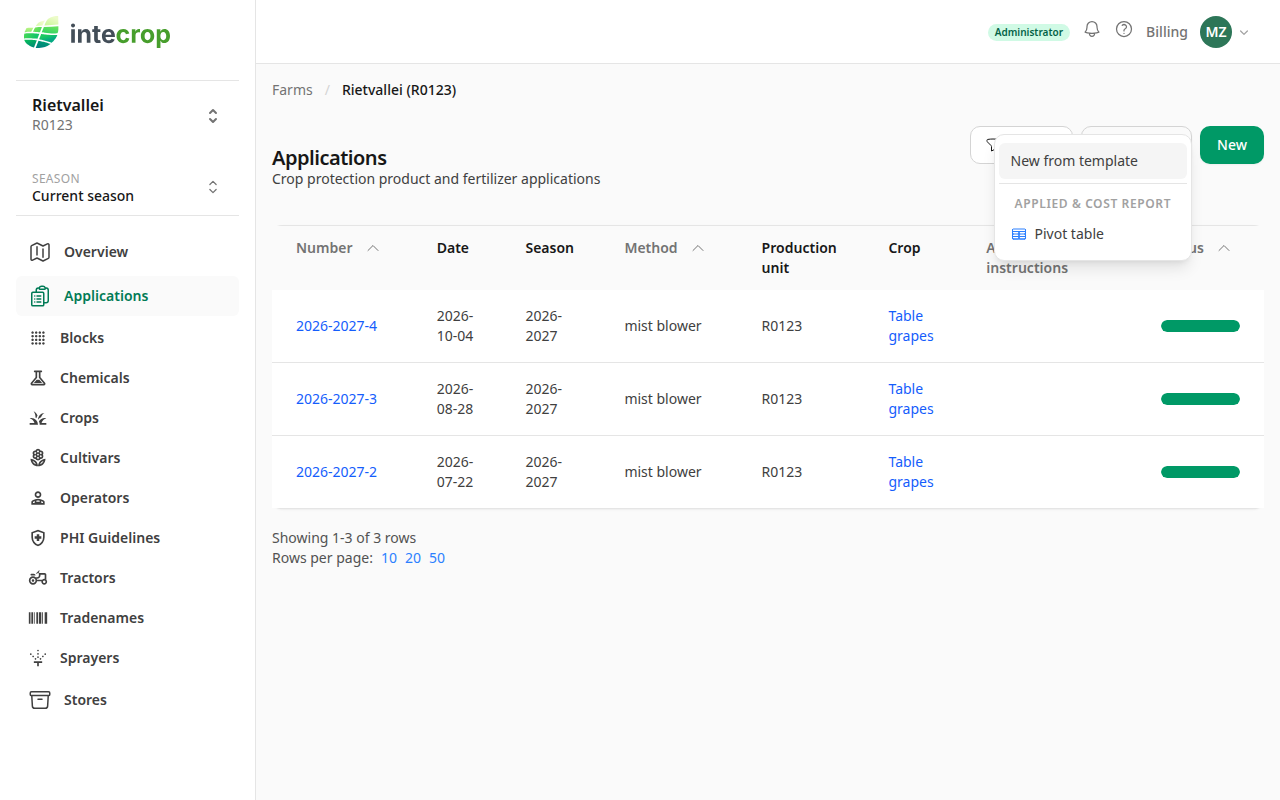
On the Applications page, open the Actions menu and choose New from template. On a phone the menu is hidden; the round + button at the bottom right offers From template instead.
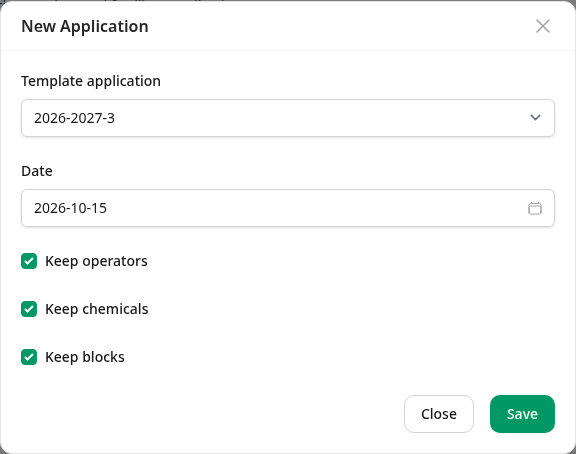
Pick the earlier application under Template application. The list shows the applications of the season you have chosen in the season selector on the left, by number, the most recently dated first. To start from one in an earlier season, change the season first — or open that application and use the second way, below.
From the earlier application itself
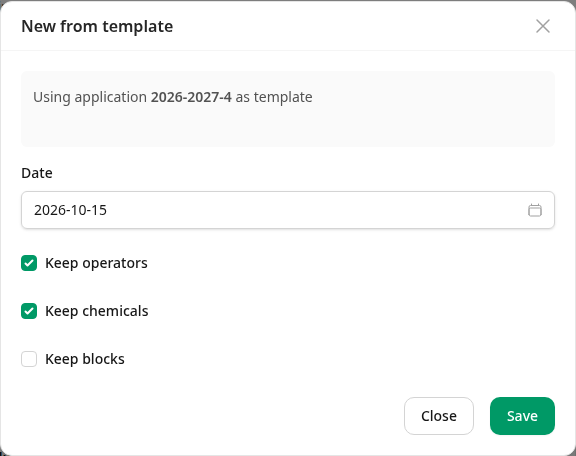
Open the application you want to repeat. Its Actions menu has Use as template, whatever stage it has reached — a draft, a printed instruction, or one that is already confirmed. The window opens with that application already chosen.
Choose the date, and what to keep
Date starts at today. The new application is numbered in the season that date falls in, not the template's. Starting this season's application from last season's is fine: it gets this season's next number.
The three boxes decide which parts of the instruction come over. All three are ticked to start with:
- Keep operators — the operators, each with their tractor, sprayer, RPM, gear, fan, pressure and tank volume.
- Keep chemicals — the chemicals with their label dosage, hectare dosage, reasons, pre-harvest interval and re-entry interval.
- Keep blocks — the blocks, in the same order.
Untick what you want to choose fresh, and press Save. You land on the new application.
What the copy carries
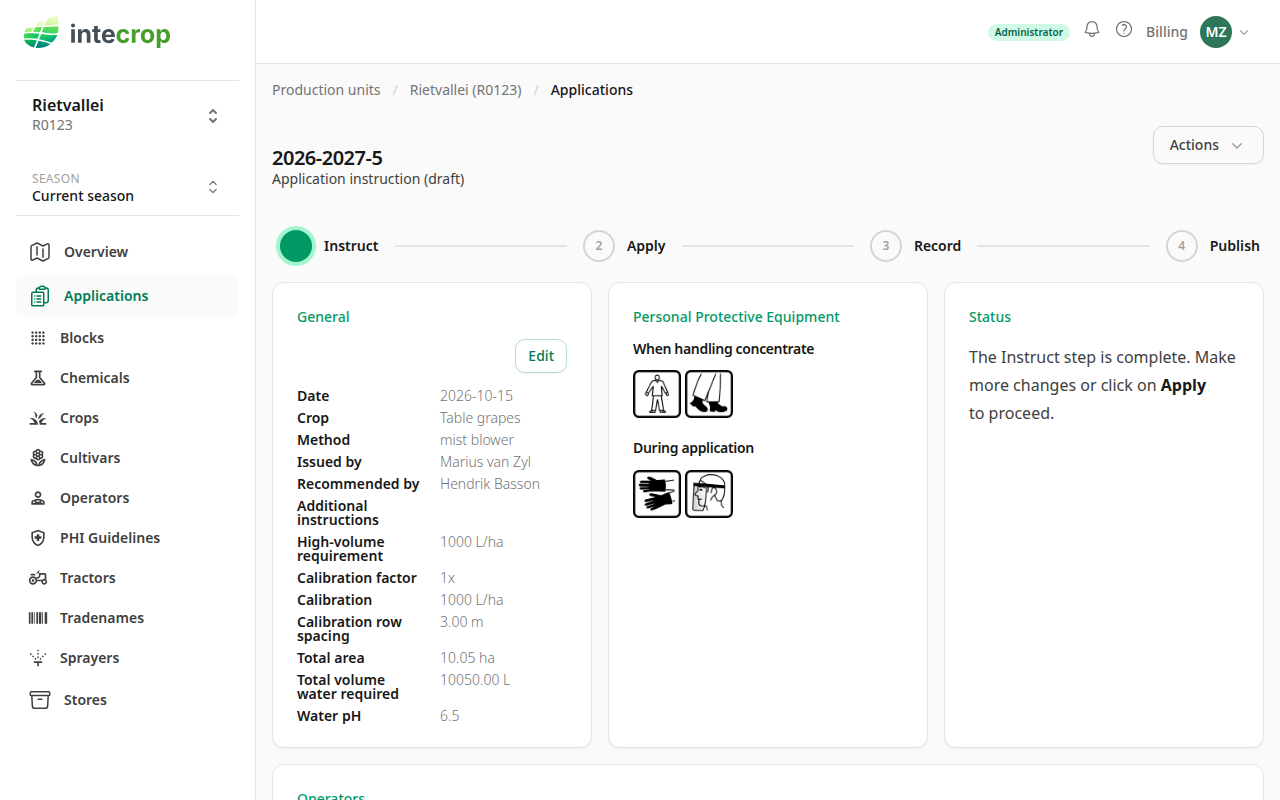
The General card comes over whole, whatever boxes you ticked: crop, method, production unit, who issued and who recommended it, any additional instructions, the high-volume requirement, calibration factor, calibration, row spacing, water pH and the application window. Only the date is the one you chose.
The operators' quantity per tank is worked out again for the new application, when you keep both the operators and the chemicals. A tank of 2000 ℓ at 2 ℓ per 1000 ℓ still needs 4 ℓ; nothing is copied blindly.
The blocks keep their expected harvest date exactly as it was. Check it on every block, especially when the template is from an earlier season: last season's harvest date comes over unchanged.
The growth stage is not copied. Each block gets the growth stage it was last recorded at this season, on or before the new date. A block that has moved on since the template shows its newer stage; a block with no growth stage recorded yet this season comes over blank, and you set it from the pencil on its row. The expected harvest counts as a recorded stage, so a block whose expected harvest date has already passed comes over at Harvest.
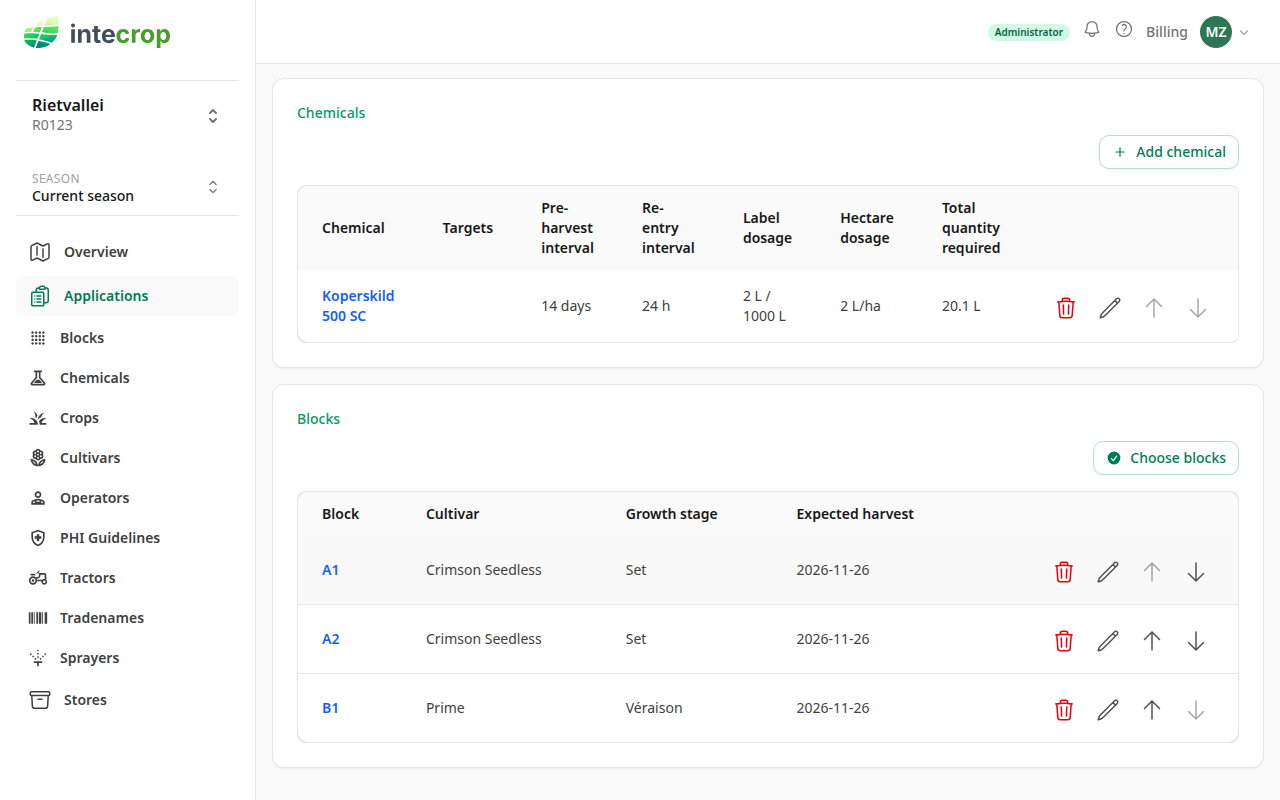
In the example, all three blocks were at Set on the template. A later application recorded B1 at Véraison, so the copy shows B1 at Véraison.
The pre-harvest and re-entry intervals are the template's. If your PHI guidelines have changed since, choose Re-apply PHI guidelines from the new application's Actions menu to take the current ones.
What does not come over
The copy is an instruction. The dates and times per block, the weather and the tanks applied are not copied, and the new application starts at Instruct, even if the template was confirmed long ago.
Leaving the blocks out
Untick Keep blocks when the mixture is the same but it is going somewhere else.
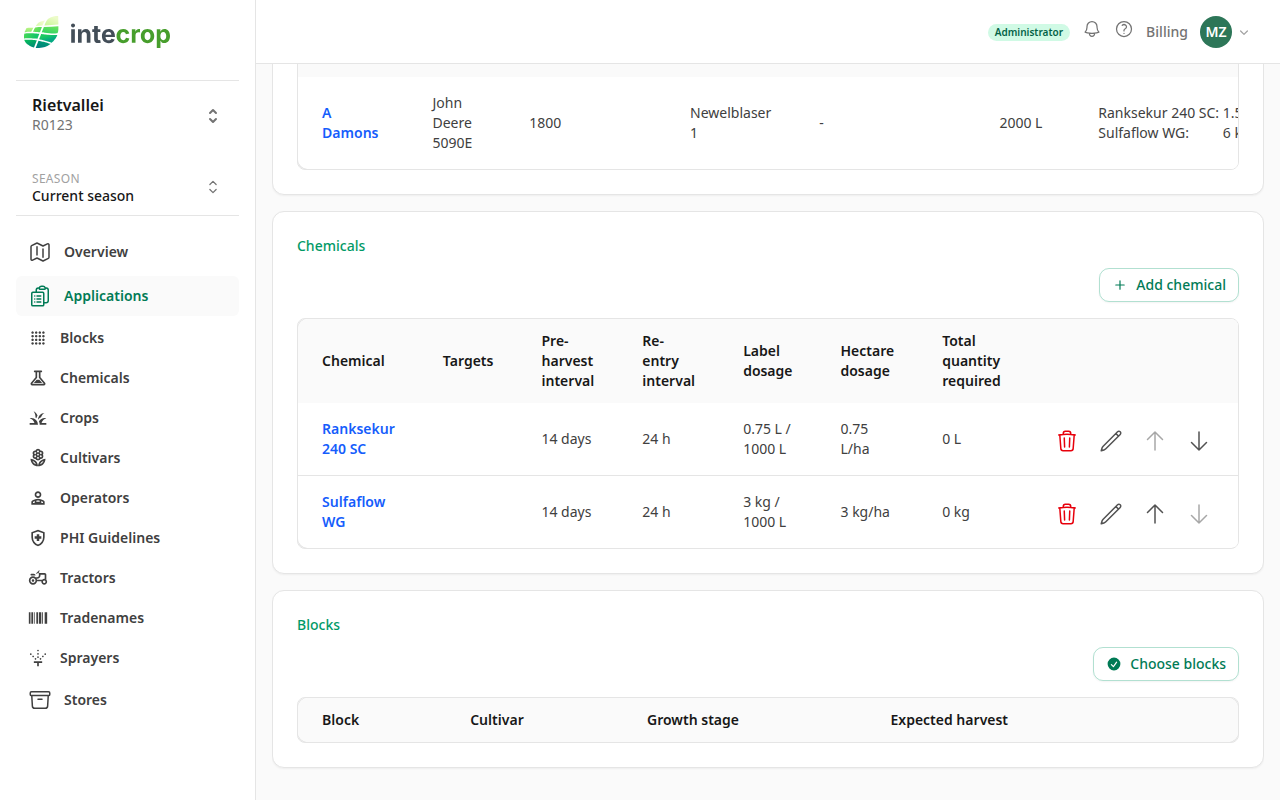
The chemicals come over with their dosages but a total quantity required of zero, and the total area is 0.00 ha. That is expected: the total is the dose times the area, and there is no area yet. Click Choose blocks, pick them, and the quantities are worked out as on any application — see Record your first application.
Then carry on as usual
The Status card lists anything still missing, the same as for an application you started from nothing. When it says the Instruct step is complete, the copy is ready to print.