
An application tag says something about an application that Intecrop does not
already know, in your own words. The usual one is who the application was for:
a buyer who wants the records of the applications on their fruit, and not the
rest. You tag those applications Buyer: Woolworths. A tag has a key,
Buyer, and a value, Woolworths.
Here, the farm has two production units, R0123 and R0456. One application on R0123 is tagged by hand, then both applications on R0456 at once.
Only a farm admin or a manager can put tags on applications and take them off. Everyone else on the farm can see them.
Tag one application
Open the application from the Applications list and scroll down to the Tags card, at the bottom of the page. It shows the tags the application has, or No tags on this application yet.
Under Key, choose a key or type a new one. Under Value, choose a value or type a new one. Press Add tag.
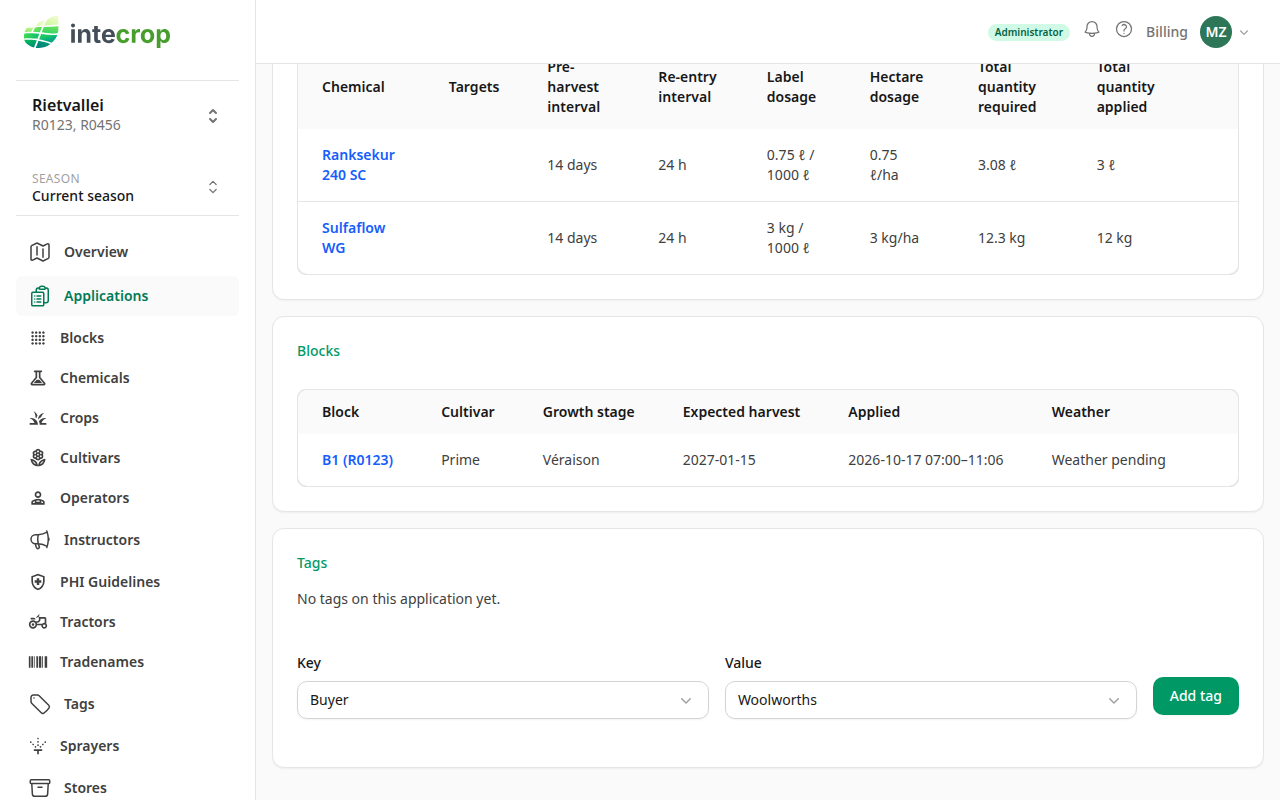
The tag shows on the card. An application has only one value for a key: if it
already had a Buyer, the new value takes its place.
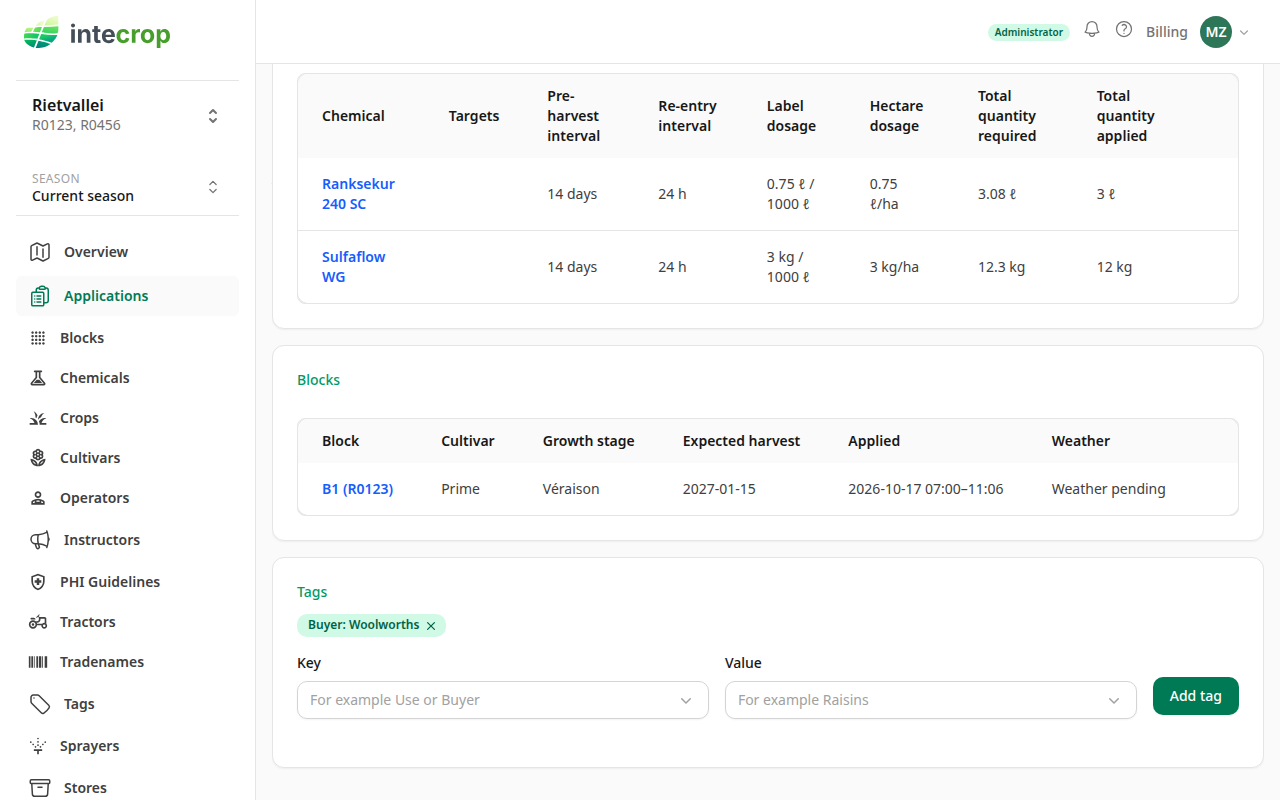
To take a tag off the application, press the cross on it.
You can tag an application at any stage, also after it is confirmed. Tagging does not change the application itself: the one here stays at Publish.
Tag many applications at once
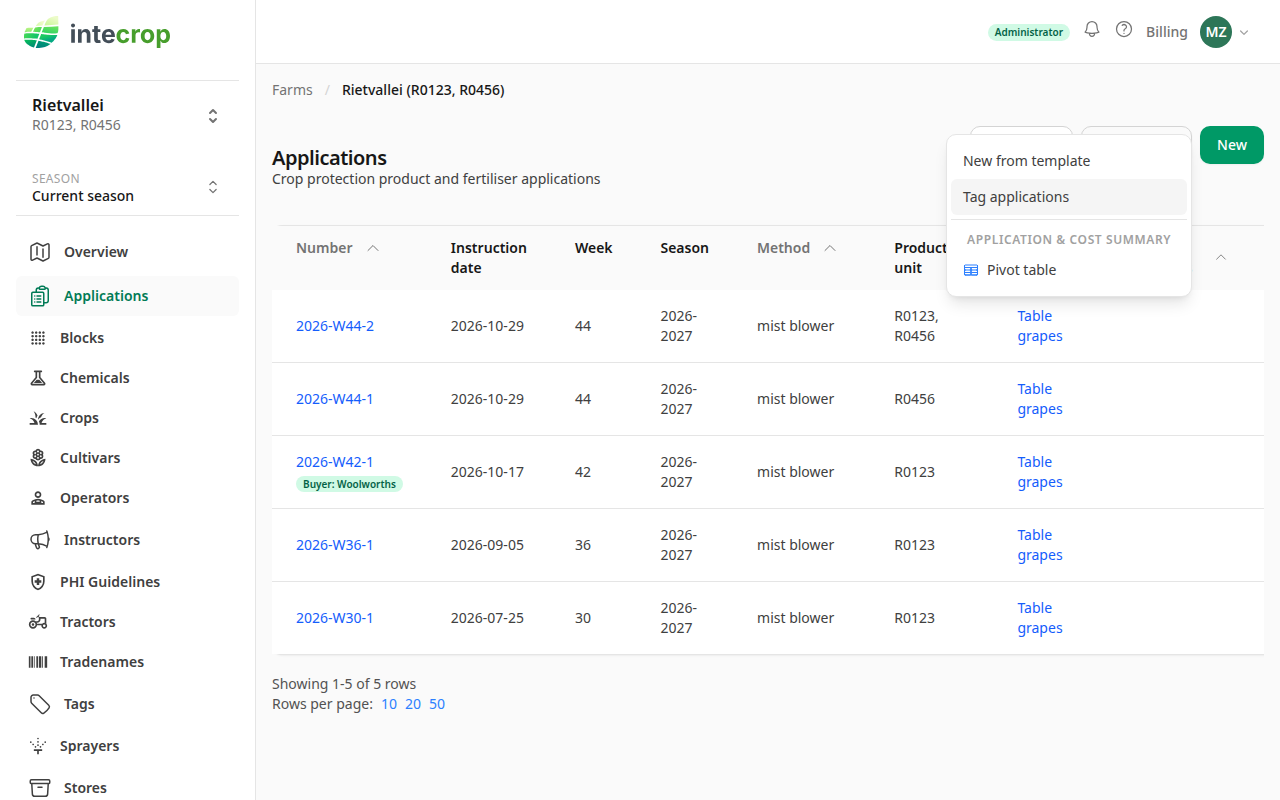
On the Applications list, open Actions and choose Tag applications. On a phone the menu is hidden; the round + button at the bottom right offers Tag applications instead.
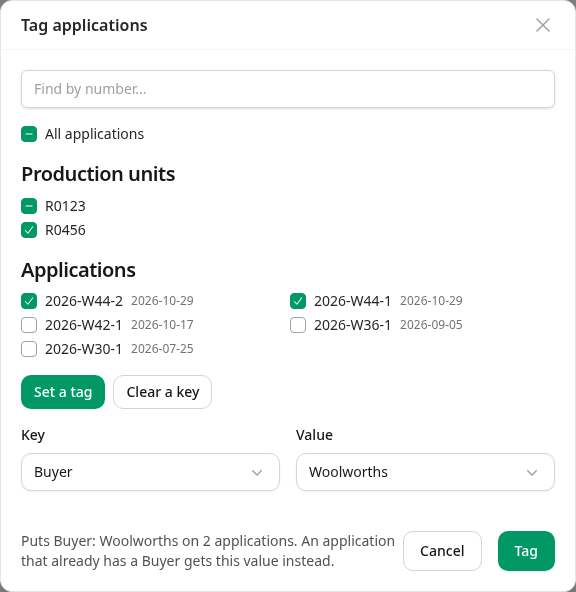
It offers every application of the season you are looking at, even when the list is filtered, each with its number and date. Nothing is ticked to start with. Tick the applications you want:
- All applications ticks every application.
- When your applications are on more than one production unit, or use more than one method, there is a box for each, which ticks all of its applications. An application with blocks in two production units is under both. Here, R0456 ticks its two applications, and R0123 shows a dash, because one of the two also has a block on R0123.
- Each application also has a box of its own. If you have many, type part of a number in Find by number... to find it quickly. That only hides the other boxes; what you ticked stays ticked.
Choose the key and the value as you would on one application. The line next to Tag says what pressing it will do, here Puts Buyer: Woolworths on 2 applications. An application that already has a Buyer gets this value instead. Press Tag.
Intecrop confirms with Tagged 2 applications Buyer: Woolworths.
List only the tagged applications
On the Applications list, press Filters and choose the tag under Tagged. You can choose more than one: the list then shows the applications that carry any of them.
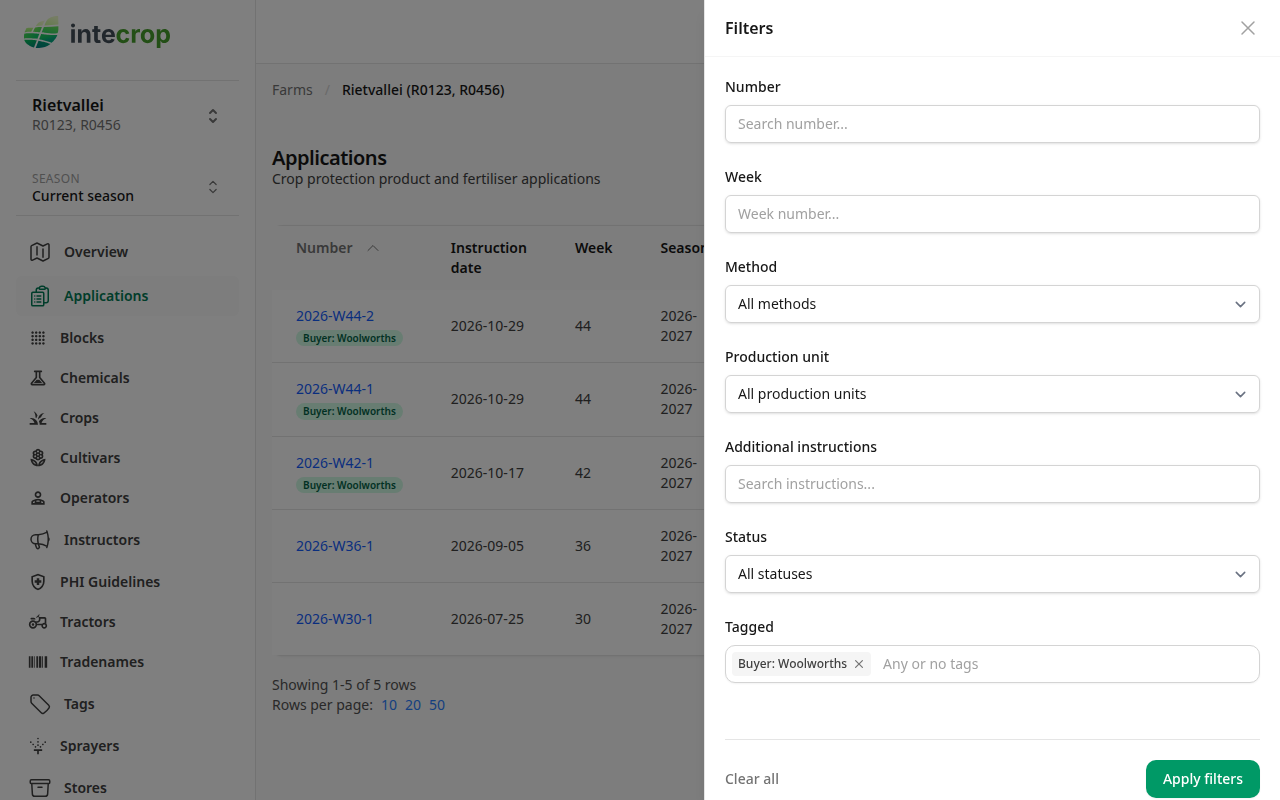
Press Apply filters. The list shows the three tagged applications, each with its tag under its number. The tag shows above the list, with a cross to take the filter off again.
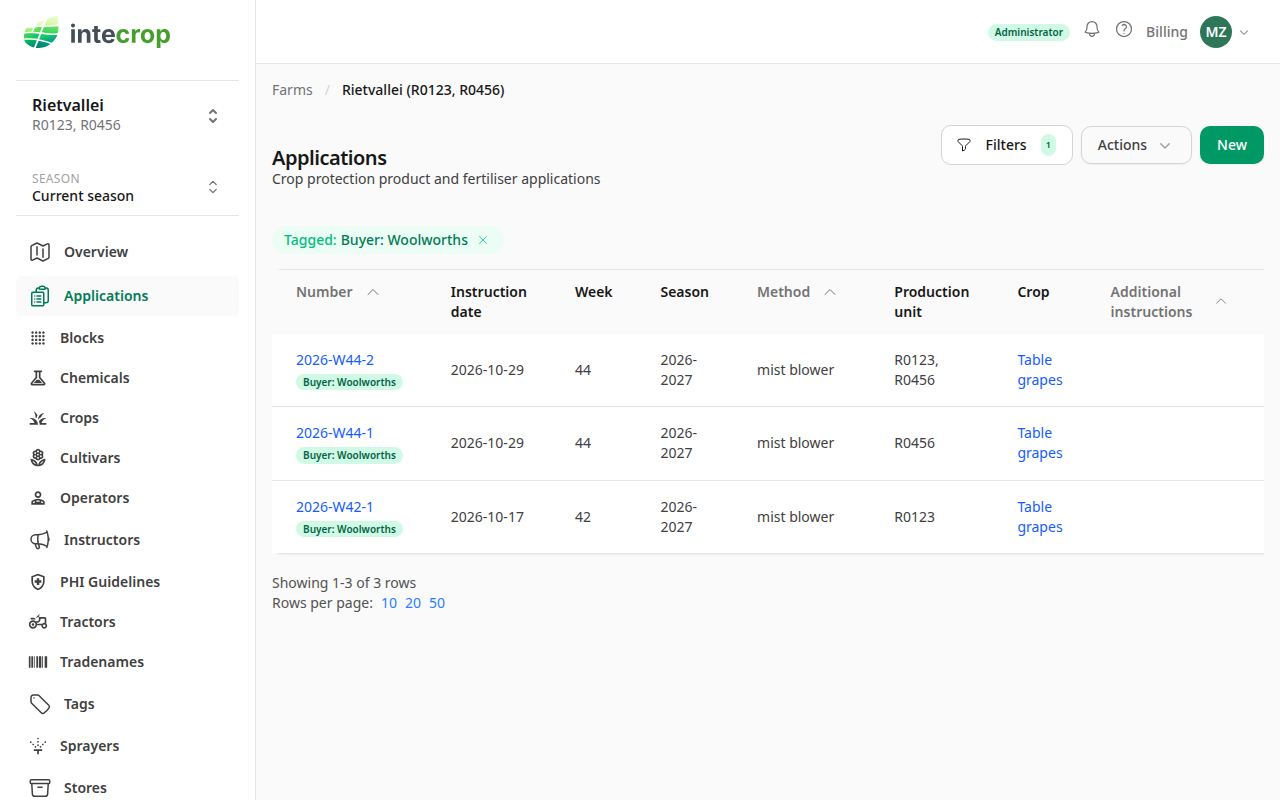
With the filter on, Pivot table under Actions opens the application summary for the tagged applications only. See Create an application summary.
Take a key off many applications
Open Tag applications again. It still offers the applications without the tag, even though the list is filtered to the tagged ones.
Tick the applications, press Clear a key, and choose the key. Whatever value each application has under that key comes off; an application without the key is left as it is. The line next to Clear says so, here Takes Buyer off the chosen application, if it has it. Press Clear.
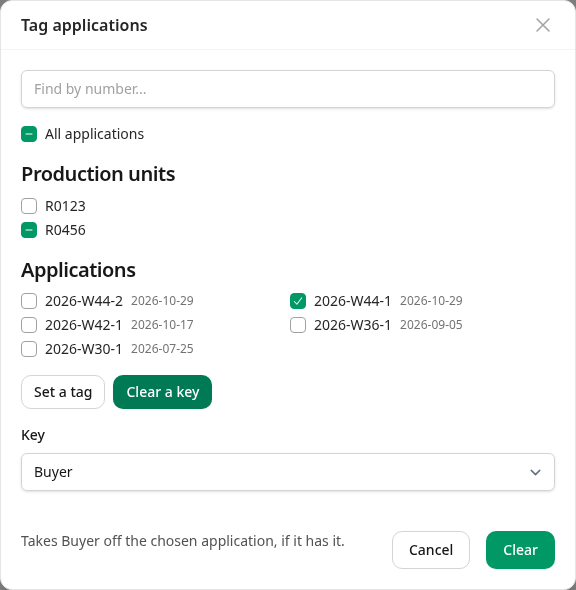
Intecrop confirms with Took Buyer off 1 application. The filtered list now shows only the two applications still tagged.
A new application from a template
When you make a new application from an earlier one, it gets the earlier one's tags, whatever else you keep. See Start an application from an earlier one.
To rename a tag, merge two, or delete one from every application at once, use the Tags page in the menu on the left.