
A buyer wants to see what went onto their fruit. Not your whole season: only
the applications their programme called for. By the end of this guide you will
have tagged those applications Buyer: Woolworths and downloaded a summary of
them to send. It takes about ten minutes, and nothing here changes your
applications: a tag can come off again at any time.
You will need to be a farm admin or a manager, because only they can put tags on applications. You will also need some applications that are published: the summary counts an application only once it reaches Publish.
The farm in this guide has three published applications this season. Two of them were for Woolworths: the two with Sulfaflow WG in them. The third, with Koperskild 500 SC on all three blocks, was not.
If you have not used tags before, What tags are for explains them in a few minutes.
Tag the buyer's applications
In the left-hand menu, choose Applications. Open Actions and choose Tag applications.
The window lists every application of the season you are looking at, each with
its number and date. Tick the ones you did for the buyer. Under Key, type
Buyer, and under Value, type Woolworths; press Enter after each to take
what you typed. The line next to Tag says what pressing it will do, here
Puts Buyer: Woolworths on 2 applications.
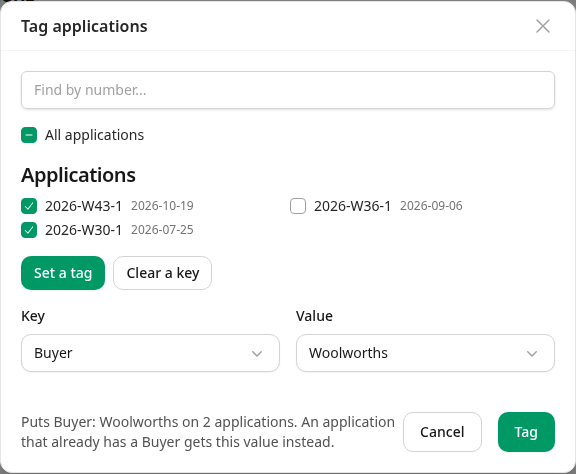
Press Tag. Intecrop confirms with Tagged 2 applications Buyer: Woolworths., and on the list each of the two shows its tag under its number.
To tag one application at a time instead, or to take a tag off again, see Tag your applications.
Open the application summary
Open Actions again and choose Pivot table. The application summary opens on this season, with every published application in it.
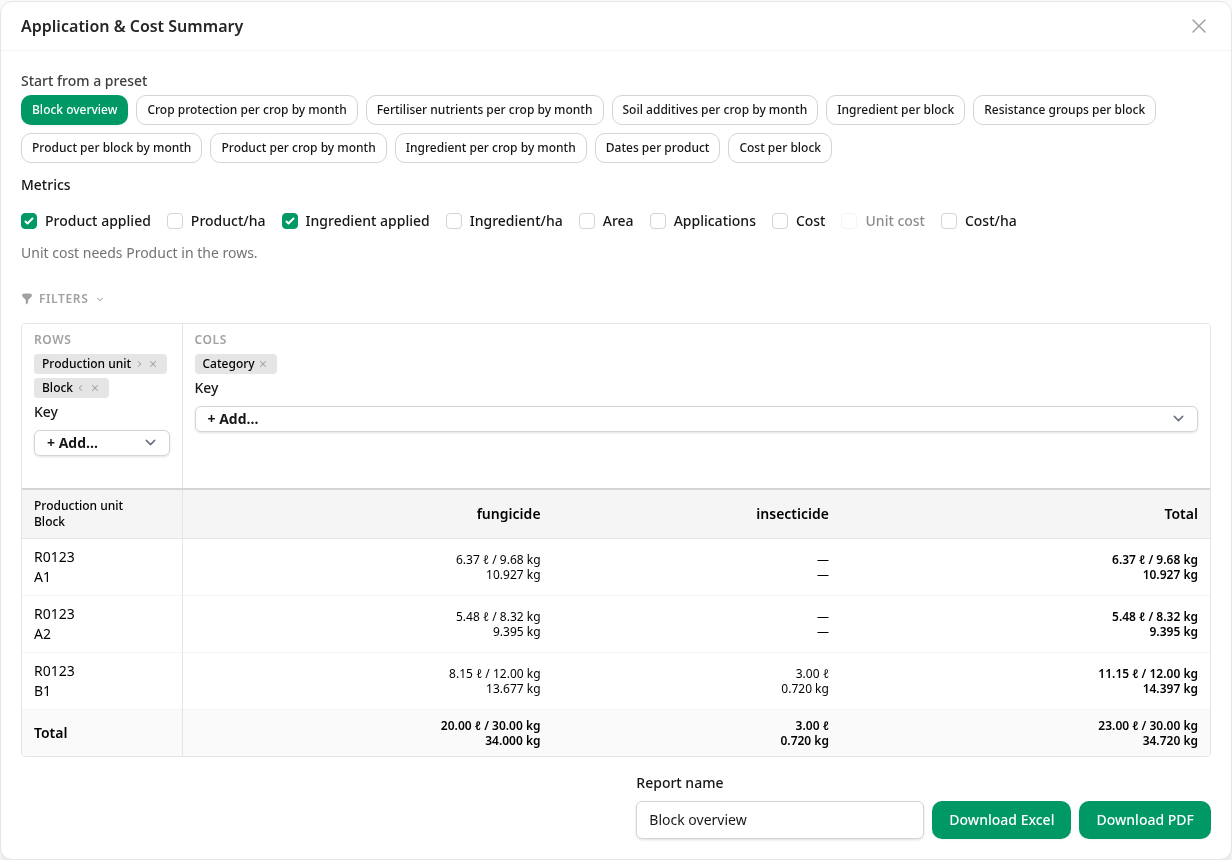
Look at the Total row before you change anything. Here it reads 23.00 ℓ / 30.00 kg of product and 34.720 kg of active ingredient. The 20.00 ℓ in it is the Koperskild 500 SC, which was not for Woolworths.
Keep only the buyer's applications
Click Filters, under the metrics. At the bottom of the panel is Tags. Set it up like this:
- Include or leave out — Only these.
- What — Applications.
- Key — Buyer.
- Under Values, tick Woolworths.
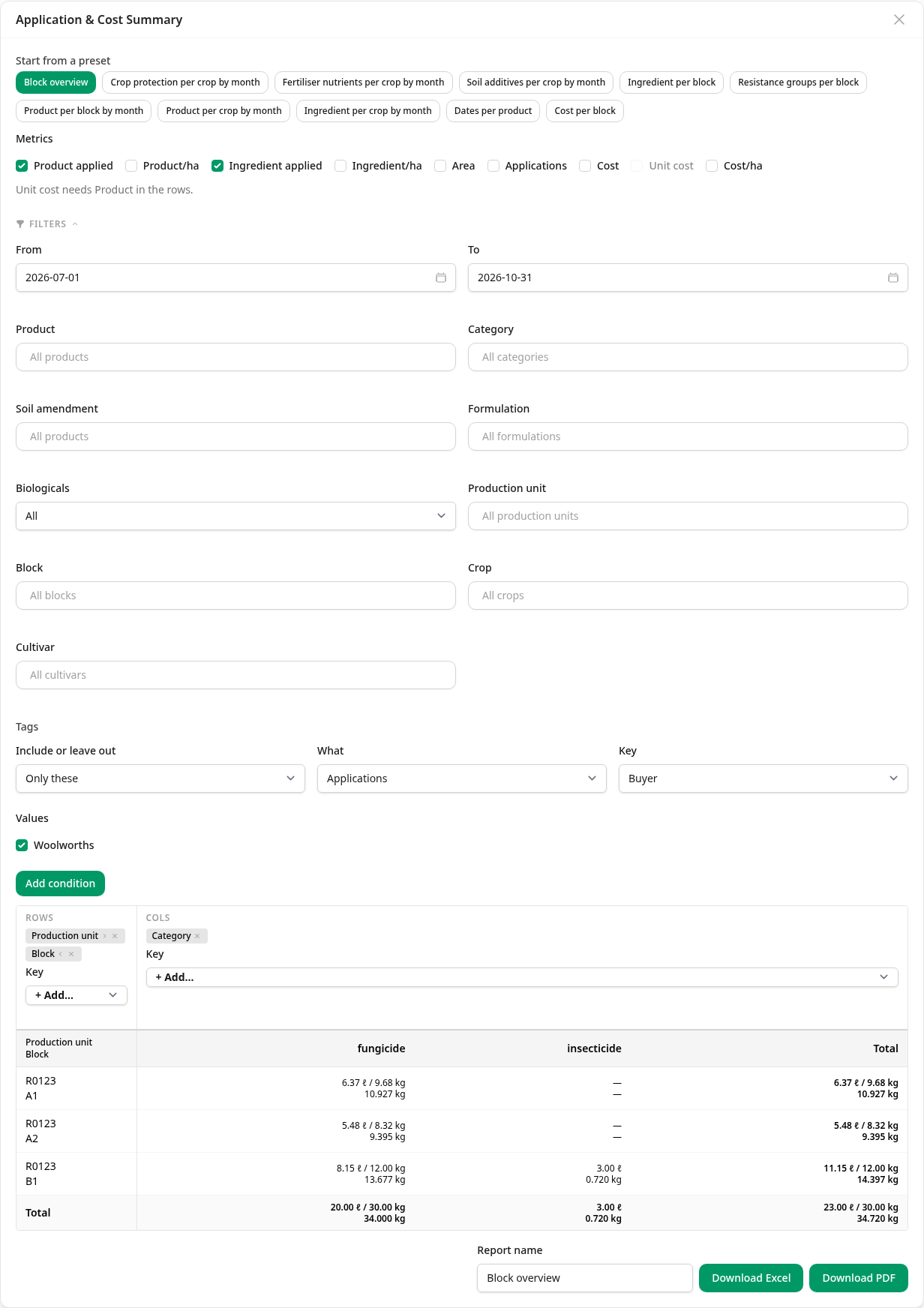
Press Add condition. Under Tags it now reads Only applications tagged Buyer: Woolworths., and the same sentence shows next to the download buttons.
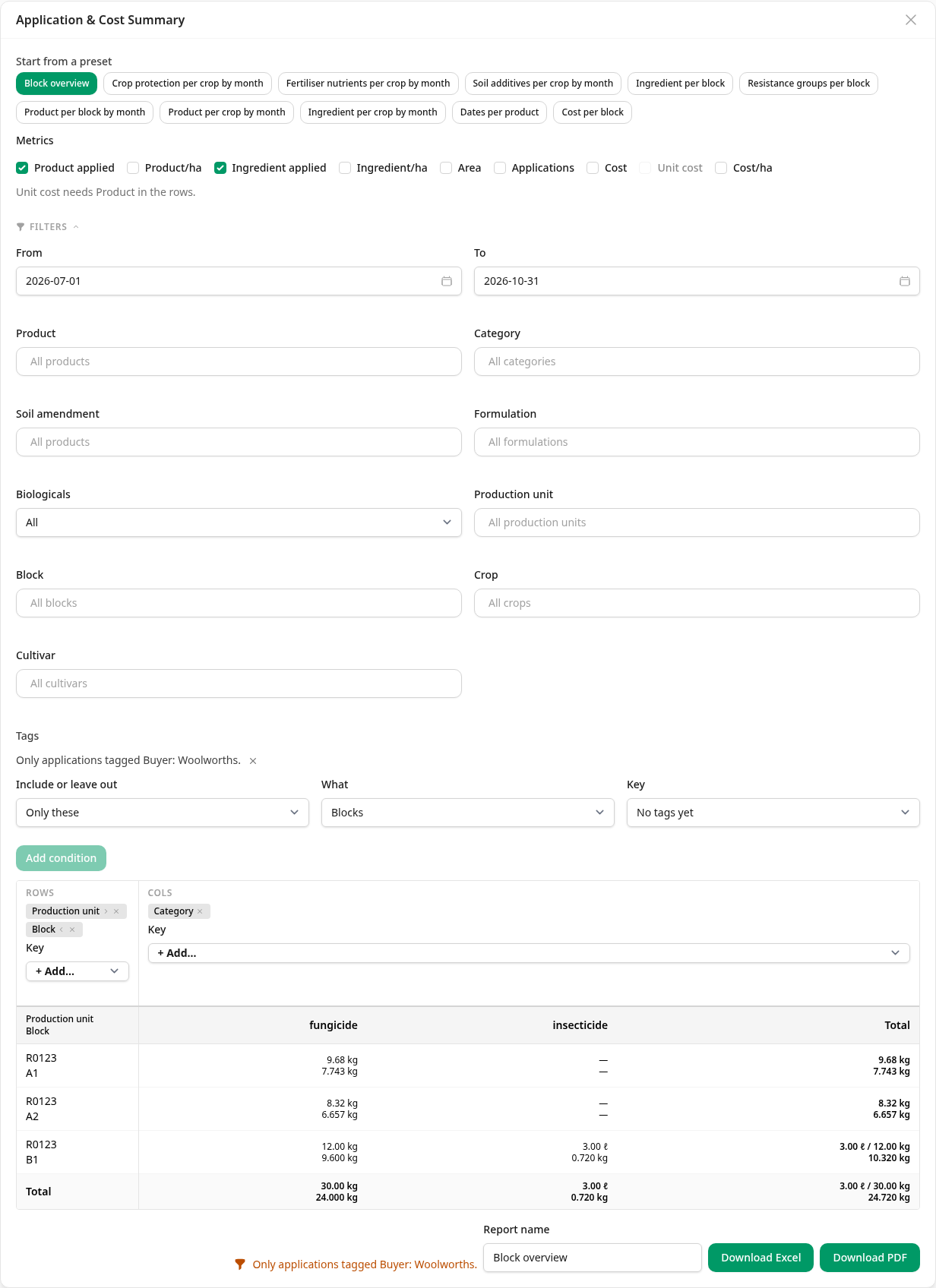
The Total row drops to 3.00 ℓ / 30.00 kg and 24.720 kg. The Koperskild 500 SC is gone; the Sulfaflow WG and the Ranksekur 240 SC from the two tagged applications are all that is left.
The tag is on the application, so Only these keeps the whole application, with every block it went onto. If the buyer takes the fruit of some blocks only, choose those blocks under Block in the same panel as well: the summary then keeps only those blocks of the tagged applications.
Download it
Press Download PDF, or Download Excel if the buyer wants a spreadsheet. Both carry only the two applications you kept.
The tag itself is not printed on the PDF or put in the spreadsheet. The buyer sees the applications that were kept, not the tag that chose them, and not the ones that were left out.
What next
The tag stays on the two applications, so next time the buyer asks you need
only add the condition again. There is a shorter way too: on the
Applications list, press Filters and choose Buyer: Woolworths under
Tagged, then open Pivot table. The summary opens with the condition
already added. Tag each new application for
the buyer as you go, or start it from one of these: an application made from an
earlier one gets its tags
(Start an application from an earlier one).
The Tags filter does more than this one job: it can leave things out as well as keep them, and works with block and chemical tags too. Create an application summary has the details, under Include or leave out by tag.