
Some of your Table grapes blocks go for raisins and the rest are packed fresh. The raisin exporter wants a list of the blocks that grow for them, and not the others. Intecrop does not know which blocks those are until you tell it, and a tag is how you tell it.
By the end of this guide you will have made the tag Use: Raisins, put it on
your raisin blocks, and downloaded a block census that lists only them. It
takes about five minutes. If you want to know more about tags before you start,
read What tags are for.
Here the farm has three Table grapes blocks: A1 and A2 (Crimson Seedless) go for raisins, and B1 (Prime) does not.
You need to be a farm admin or a manager to make tags and put them on blocks.
Make the tag
In the left-hand menu, choose Tags. On a farm that has never used tags, every section says there are none yet.
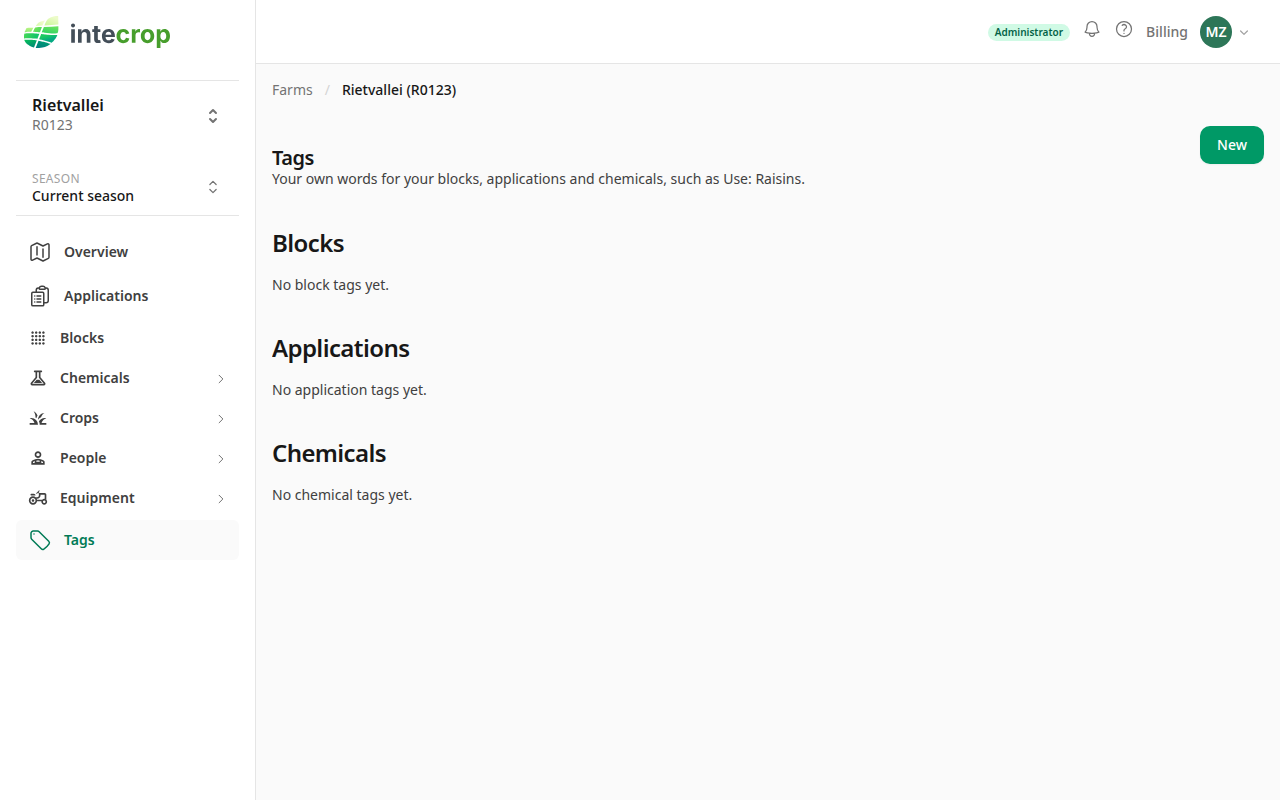
Press New. On already says Blocks, which is what you want. Type
Use under Key and Raisins under Value.
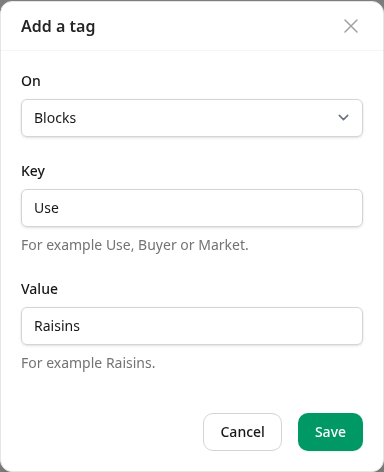
Press Save. Intecrop confirms with Added Use: Raisins. The tag is in the Blocks section now, on 0 blocks.
Put the tag on your raisin blocks
In the left-hand menu, choose Blocks. Open Actions and choose Tag blocks.
Tick the blocks that go for raisins. Here both are Crimson Seedless, so the Crimson Seedless box ticks A1 and A2 and leaves B1. If yours are not one cultivar, tick each block on its own.
Under Key, choose Use, and under Value, choose Raisins. The line
next to Tag says Puts Use: Raisins on 2 blocks. A block that already has a
Use gets this value instead.
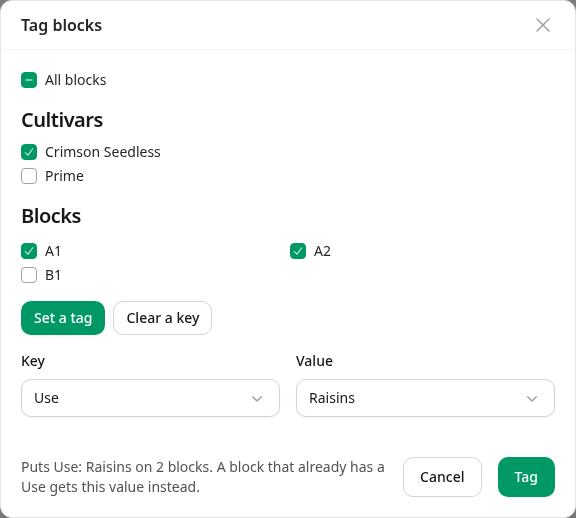
Press Tag. Intecrop confirms with Tagged 2 blocks Use: Raisins.
There are other ways to tag a block, one at a time from its own page among them. See Tag your blocks.
Check which blocks carry it
Before you send anything, make sure the tag is on the right blocks. On the
Blocks list, press Filters and choose Use: Raisins under Tagged.
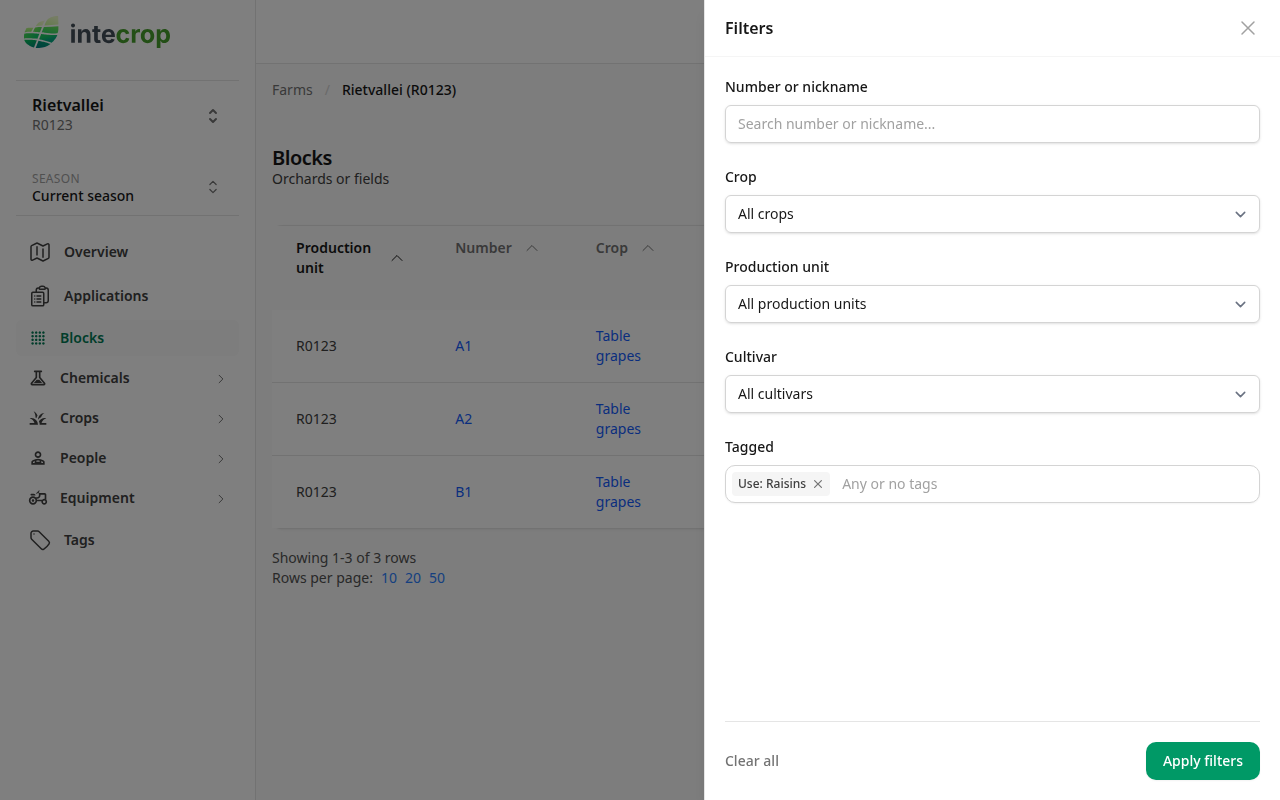
Press Apply filters. The list shows A1 and A2, and B1 is gone.
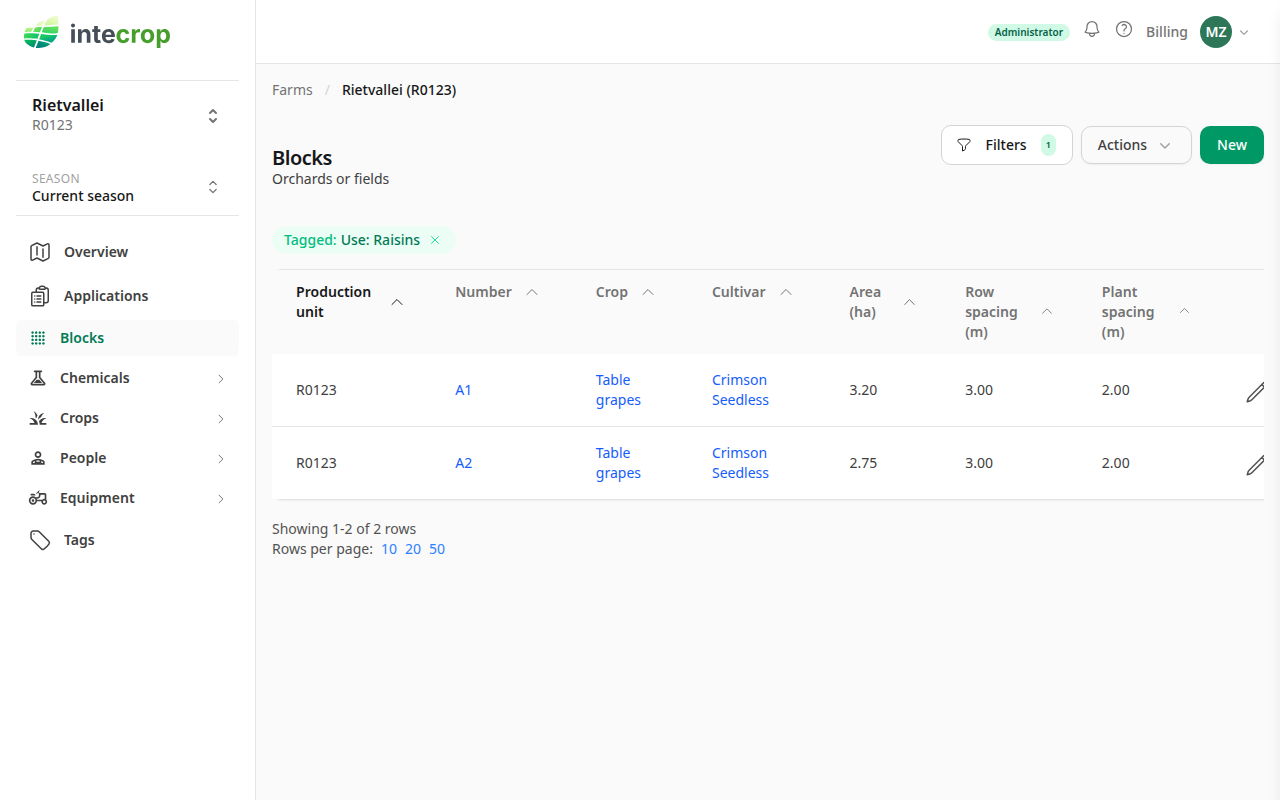
If a raisin block is missing, or a block is there that should not be, go back to Tag blocks and put it right before you go on.
Download the census
With the list still filtered, open Actions and choose Export…. The export starts with the filter you chose: under Tags it says Only blocks tagged Use: Raisins., and the same line shows above the downloads, so you can see what will be left out before you download. The form under it is for adding another condition; you need not touch it.
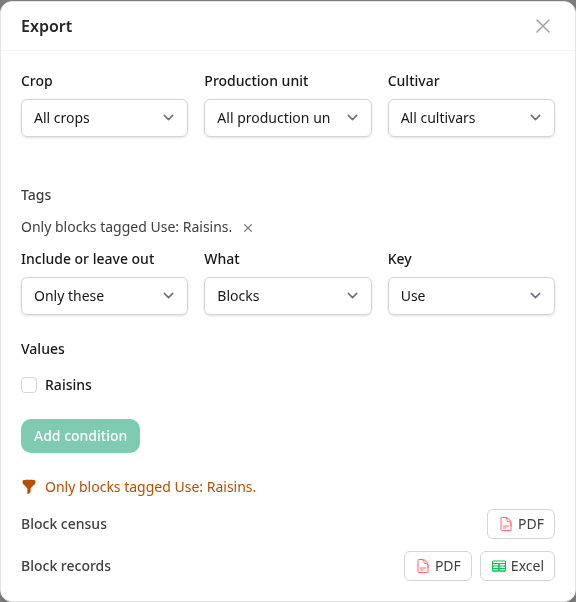
Next to Block census, press PDF. The census opens in a new tab, ready to save or print. It lists A1 and A2, and not B1. That is the file to send the exporter.
If you open Export… with no Tagged filter on the list, it starts with
no tag condition. To add one there, choose Only these, Blocks, the key
Use, tick Raisins, and press Add condition.
The exporter may also want what went onto those blocks. Block records in the same dialog is filtered the same way. It covers the season chosen in the Season selector, and only applications that have been published. See Give an auditor your block records for what is in it.