
The Tags page is where you look after your tags themselves: add one before anything carries it, fix a spelling, put two tags that mean the same thing together, or take a tag off everything at once. To put a tag on a block, an application or a chemical, or take it off one, see Tag your blocks, Tag your applications and Tag your chemicals. What tags are and where they count is in What tags are for.
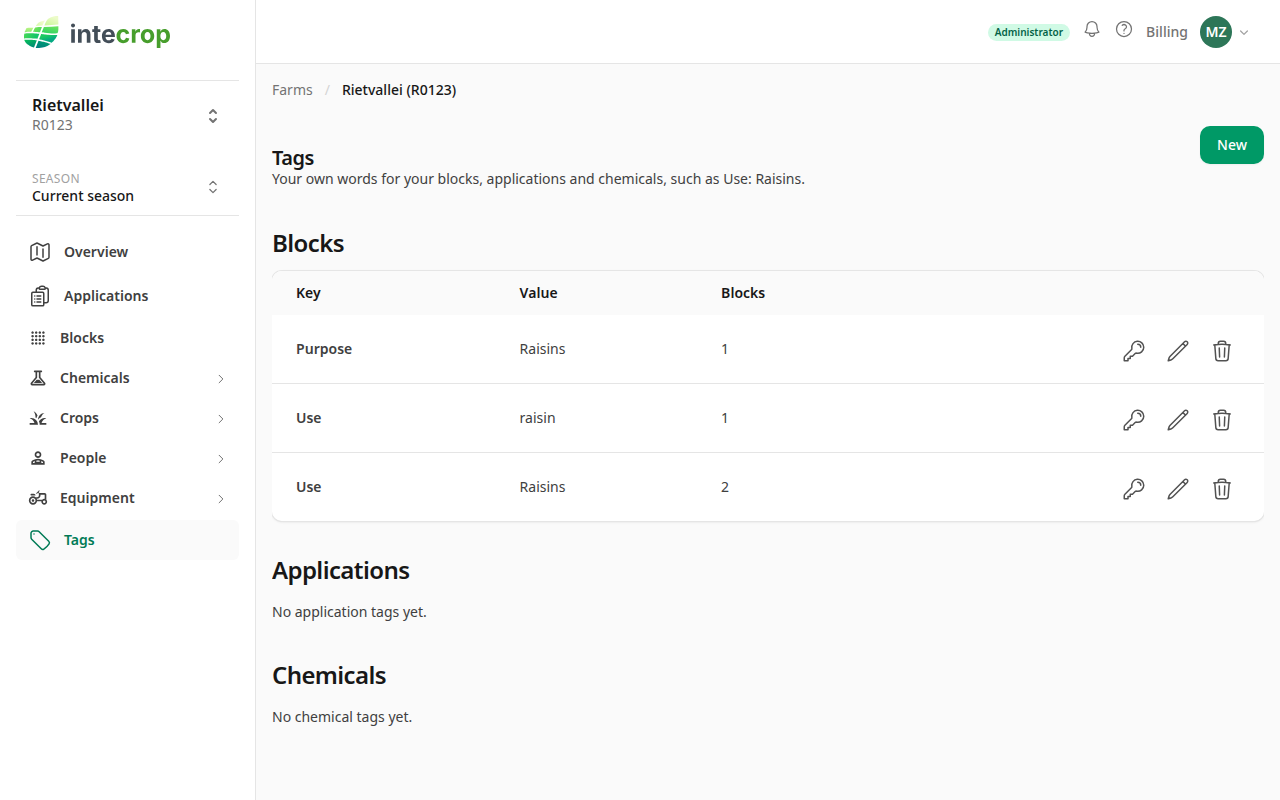
Here, two people tagged the farm's blocks. A1 and A2 are Use: Raisins, but B1
was tagged Use: raisin, and A2 was also tagged Purpose: Raisins.
Only a farm admin or a manager can add, rename, merge or delete tags. Everyone else on the farm can see them.
See your tags
Choose Tags in the menu on the left. Your tags are listed in three parts, Blocks, Applications and Chemicals, each by key and then value. Next to each tag is how many blocks, applications or chemicals carry it.
Add a tag
Press New. Under On, choose what the tag is for, type the Key and the Value, and press Save.
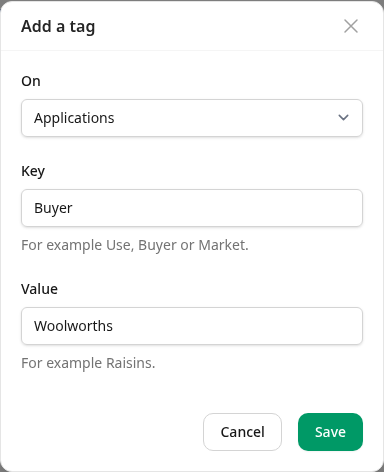
Intecrop confirms with Added Buyer: Woolworths. The tag is listed under Applications on 0 applications. A tag that nothing carries stays on the list until you delete it, so you can use it again later.
Capitals do not make a different tag: on blocks, Use: Raisins and
use: raisins are the same tag, so adding the second only tells you Use:
Raisins is already one of this farm's tags. A new value under a key you
already have for the same kind takes that key's spelling, so you do not end up
with Use and USE side by side. A block tag and an application tag are
never the same tag, even with the same words. Extra spaces
are taken out, and a key may not contain a colon (:).
Rename a value
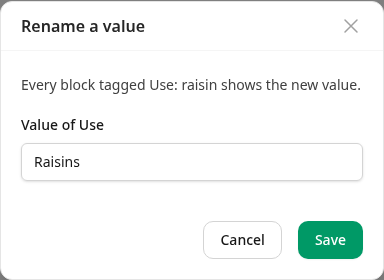
Press the pencil next to the tag, type the new value, and press Save. Everything carrying the tag shows the new value.
Merge two tags
Use: raisin and Use: Raisins mean the same thing, so rename the one to the
other. If the key already has the value you typed, Intecrop offers to merge the
two, and tells you how many will carry the tag after the merge. Here A1 and A2
carry Use: Raisins and B1 carries Use: raisin, so 3 blocks will.
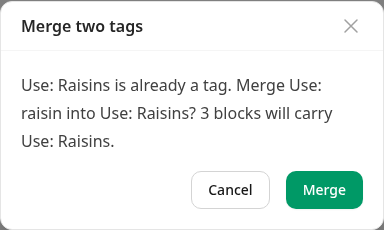
Press Merge. Intecrop confirms with Merged Use: raisin into Use: Raisins.
Use: raisin is gone from the list, and Use: Raisins is on 3 blocks.
Rename a key
Press the key icon next to any of its tags, type the new key, and press
Save. Every value under the key is renamed. Renaming Buyer to Customer
here makes Buyer: Woolworths into Customer: Woolworths, and Intecrop
confirms with Renamed Buyer to Customer.
If you rename a key to one you already have, the two keys become one. A value the other key already has is merged into that tag straight away, without the question Merge asks when you rename a value.
That is refused when some blocks, applications or chemicals have a value under
both keys, because each can have only one value for a key. Renaming Purpose
to Use here is refused, because A2 has both:
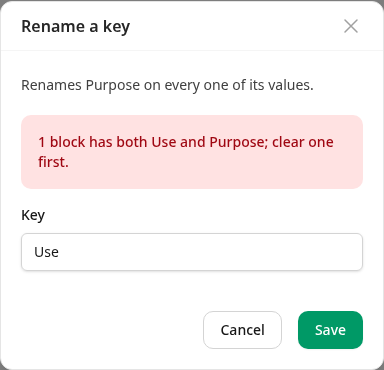
Press Cancel to leave the key as it is. Then take one of the two keys off those blocks, applications or chemicals: press the cross on the tag on each one, or tick them all and use Clear a key on the list. Rename the key again once nothing has both.
Delete a tag
Press the bin next to the tag. Intecrop asks you to confirm, and says how many blocks, applications or chemicals carry it.
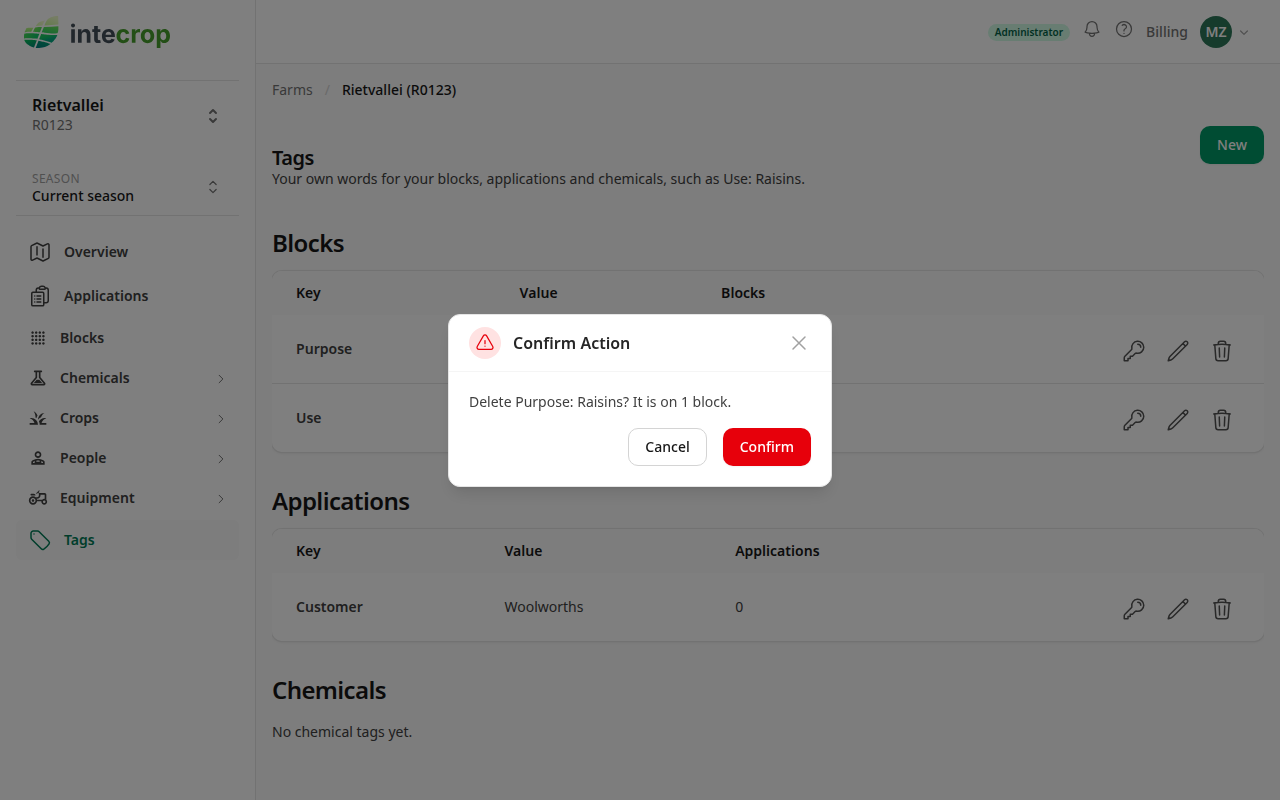
Press Confirm. Intecrop confirms with Deleted Purpose: Raisins. Deleting a tag takes it off all of them.